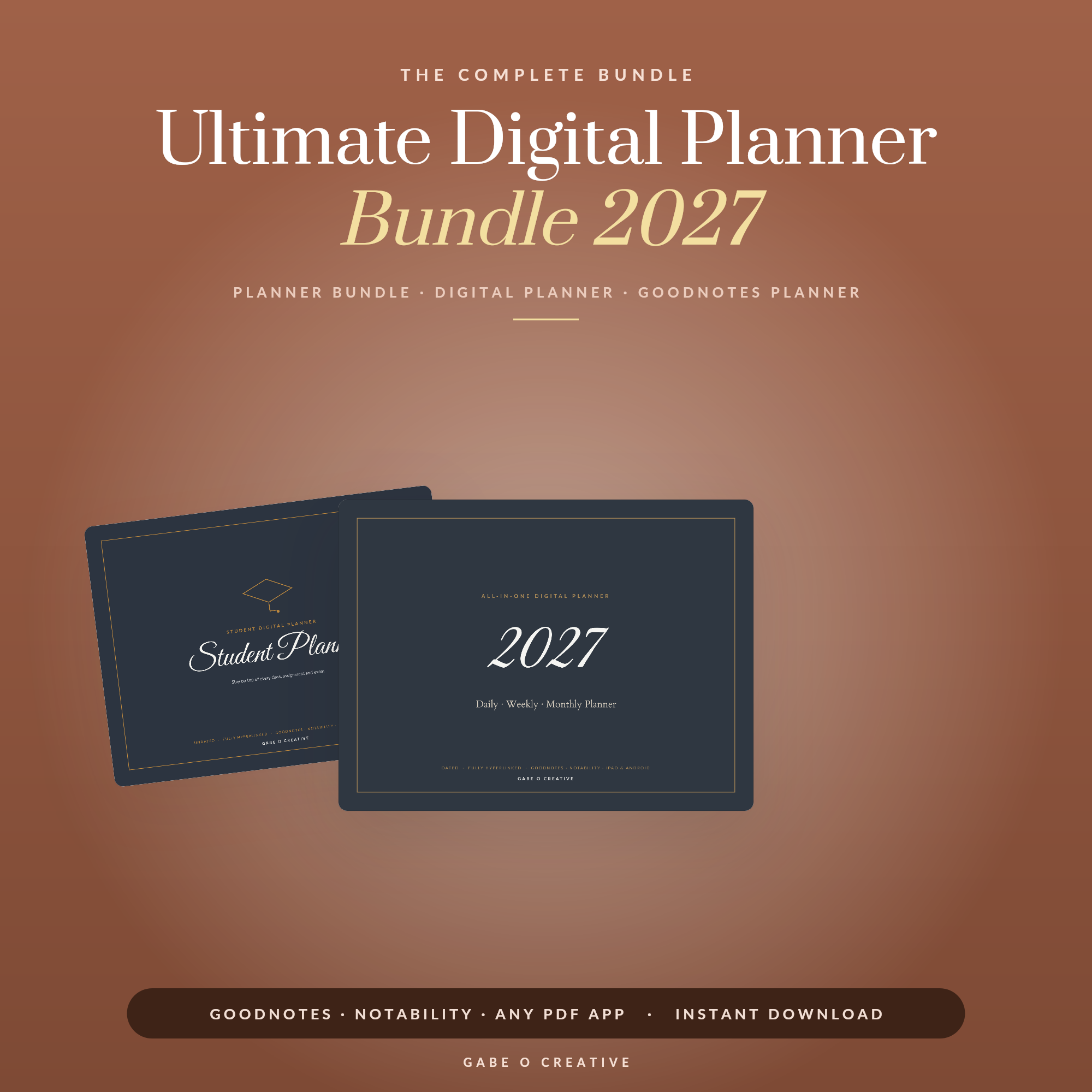
If you are searching for a digital planner that actually works inside GoodNotes, here is the short answer: choose a fully hyperlinked PDF with tabs you can tap, import it into GoodNotes in under five minutes, and start planning the same day. A good digital planner turns your iPad and Apple Pencil into a complete paper-free system, with unlimited pages and zero clutter. Below you will find the best GoodNotes-ready picks, a quick setup walkthrough, and a simple way to match the right planner to how you actually work.
Want to skip the research? The Daily, Weekly and Monthly all-in-one planner is our most versatile GoodNotes pick and just £2.99 – import it once and you have every view you need for the whole year.
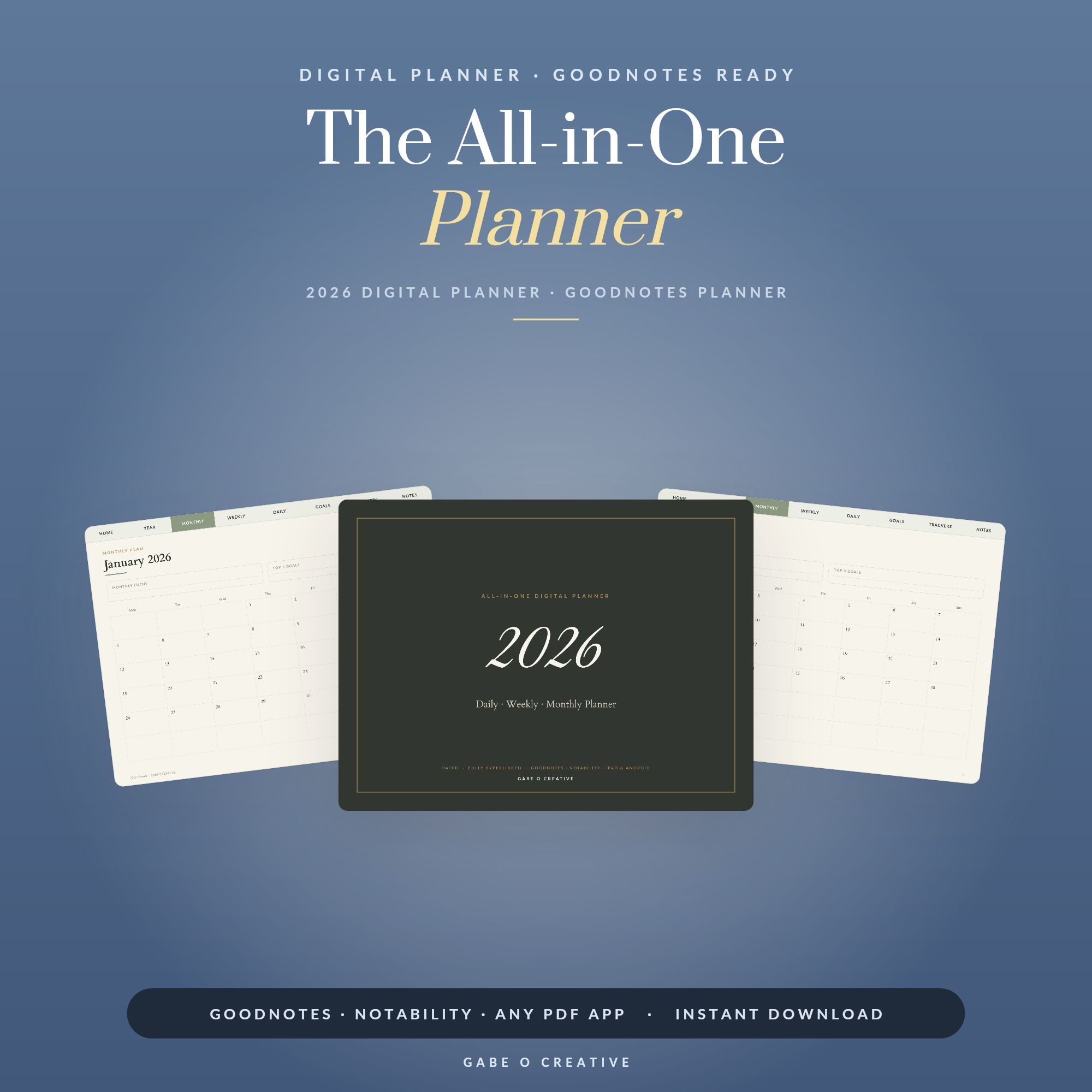 Shop Daily · Weekly · Monthly Planner →
What Makes a Great Digital Planner for GoodNotes
Not every PDF is built for tablets. A true digital planner is designed around tapping, swiping and annotating, so the difference between a generic export and a proper GoodNotes planner is huge. When you import a well-made one, navigating a whole year should feel as fast as flicking through a real notebook.
Here is what separates the best from the rest:
- Real hyperlinks – tap a month or date and jump straight there, no scrolling.
- Side and top tabs that stay visible so you always know where you are.
- Clean, premium layouts with room for handwriting and stickers.
- Portrait orientation that matches how you hold an iPad.
- Undated or multi-year pages so the planner never expires.
Get those five things right and the planner more or less disappears into the background, leaving you to focus on the planning itself rather than fighting the file. A planner exported from a slide tool, by contrast, often has dead links, blurry text and pages sized for a screen rather than an iPad, which is exactly the frustration shoppers want to avoid.
Why GoodNotes is the go-to app
GoodNotes wins because its handwriting feels natural, its tabs render beautifully, and hyperlinks respond instantly. You can search your handwritten notes, drop in elastic stickers, and duplicate any page in a tap. That said, every planner we make also works in Notability, Xodo and most PDF apps, so you are never locked in. If you already love another app, your digital planner will behave the same way there.
The Best Digital Planner Picks for GoodNotes in 2026
Each planner below is hyperlinked, iPad-ready and a customer favourite. Here is the quick best-of list, then the details:
- Best all-rounder: the Daily, Weekly and Monthly all-in-one planner
- Best for long-term goals: the portrait multi-year planner
- Best for readers: the digital reading journal for GoodNotes
1. Best all-rounder: the all-in-one planner
If you only buy one planner, make it the Daily, Weekly and Monthly all-in-one planner. It bundles three planning views into a single hyperlinked file, so you can zoom from a daily to-do list out to the full month with one tap. At just £2.99 it is the easiest way to run your entire schedule from GoodNotes, and it suits students, professionals and busy parents alike.
2. Best for long-term goals: the multi-year planner
Thinking beyond the next twelve months? The Making This Year Mine portrait multi-year planner stretches across several years in one tidy, portrait-orientation file, which is perfect for tracking goals, milestones and habits over the long haul. Because it is undated and multi-year, it never goes out of date – you simply keep planning. At £3.99 it is a small price for a planner you will reach for season after season.
3. Best for readers: the digital reading journal
If your goals include reading more this year, the digital reading journal for GoodNotes is a joy. It includes hyperlinked reading logs, review pages, star ratings and TBR lists, all designed to be filled in with your Apple Pencil. At £2.99 it pairs perfectly with any of the planners above to round out your paper-free setup.
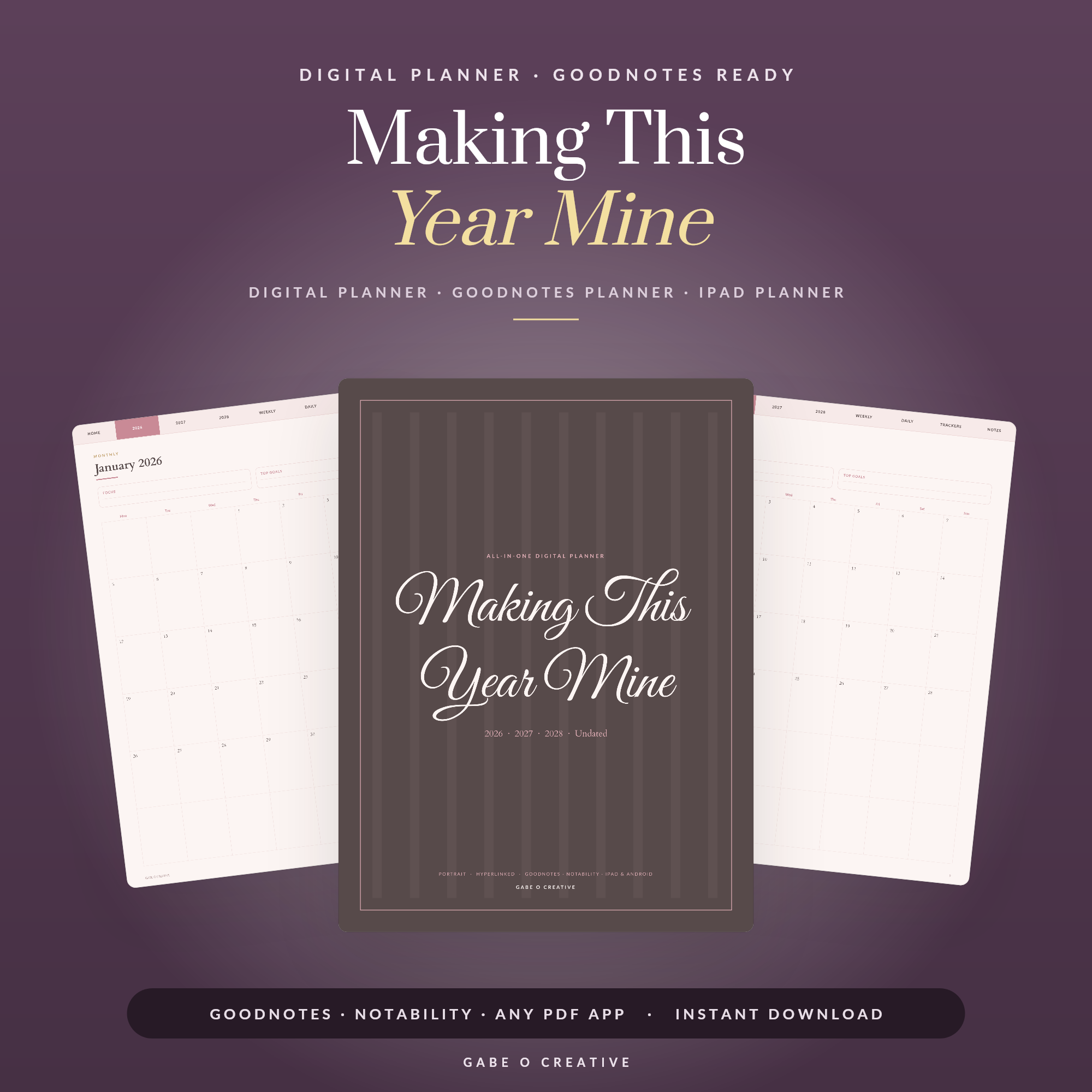 Shop Making This Year Mine →
Digital Planner Comparison: Which One Fits You
The best digital planner is simply the one that matches your goal. Use this quick comparison to decide where to start:
| Your main goal | Best pick | Price |
|---|---|---|
| Run my whole schedule | All-in-one planner | £2.99 |
| Track multi-year goals | Portrait multi-year planner | £3.99 |
| Read more books | Digital reading journal | £2.99 |
| Do a bit of everything | Mix two together | From £5.98 |
Want to see every layout side by side? Browse the full Digital Planners collection to compare covers, tabs and spreads before you choose. And if you would rather buy a complete set at a lower per-item price, our guide to building a printable planner bundle shows you how to combine planners for the best value.
iPad, Android or Windows?
Every planner here is a standard PDF, so it works far beyond the iPad. Load it into GoodNotes or Notability on an iPad, Xodo on Android, or Drawboard on Windows – the hyperlinks and tabs behave identically everywhere, so you are never tied to one device.
How to Set Up Your Digital Planner in GoodNotes
Getting started takes about five minutes, and the order matters more than people expect.
- Download the PDF on the tablet you'll actually plan on. Downloading on a laptop and emailing it to yourself is where most people lose the file.
- Import it into GoodNotes properly. Tap the plus icon, choose Import, and select the planner PDF. It opens as a brand-new notebook. Do not use \"Open in GoodNotes\" from a preview window — that sometimes flattens the file and kills the hyperlinks.
- Test the tabs before you write anything. Tap a month or a date tab and check it jumps. If the links work now, they will work all year.
- Make it yours. Pick one pen you enjoy writing with, bookmark your most-used pages, and fill in today.
The one thing that confuses everybody: links vs pen
If tapping a tab draws a line instead of jumping to the page, nothing is broken — you are simply in writing mode. GoodNotes only follows a hyperlink when you are in read-only mode or using the selection tool, because otherwise every tap would be a pen stroke. Toggle read-only (or switch off the pen) and the tabs behave. This single misunderstanding is behind most \"the hyperlinks don't work\" complaints, and it is not a fault in the planner.
The four tools worth learning
GoodNotes has plenty of features you can ignore. These four carry almost all of the daily use:
- The pen, in one colour you like. Resist a rainbow in week one.
- The lasso, to move or resize anything you have written — this is what makes digital planning genuinely better than paper.
- The eraser, set to erase whole strokes rather than pixels.
- The image tool, for stickers and photos.
Backing it up (three minutes, once)
A year of planning living on one tablet is a risk worth removing. GoodNotes can export the whole notebook to iCloud or share it as a fresh PDF, and turning on automatic backup once means you never think about it again. Do it the day you import, not the day you drop the iPad.
Making it stick past week two
The habit, not the planner, is what fails. Set a daily reminder to open it, keep your most-used pages bookmarked, and resist over-decorating early — the goal is for the planner to feel effortless rather than like another chore. Most people who abandon a digital planner do so in the second week, almost always because they built an elaborate system before building the habit of opening it at all.
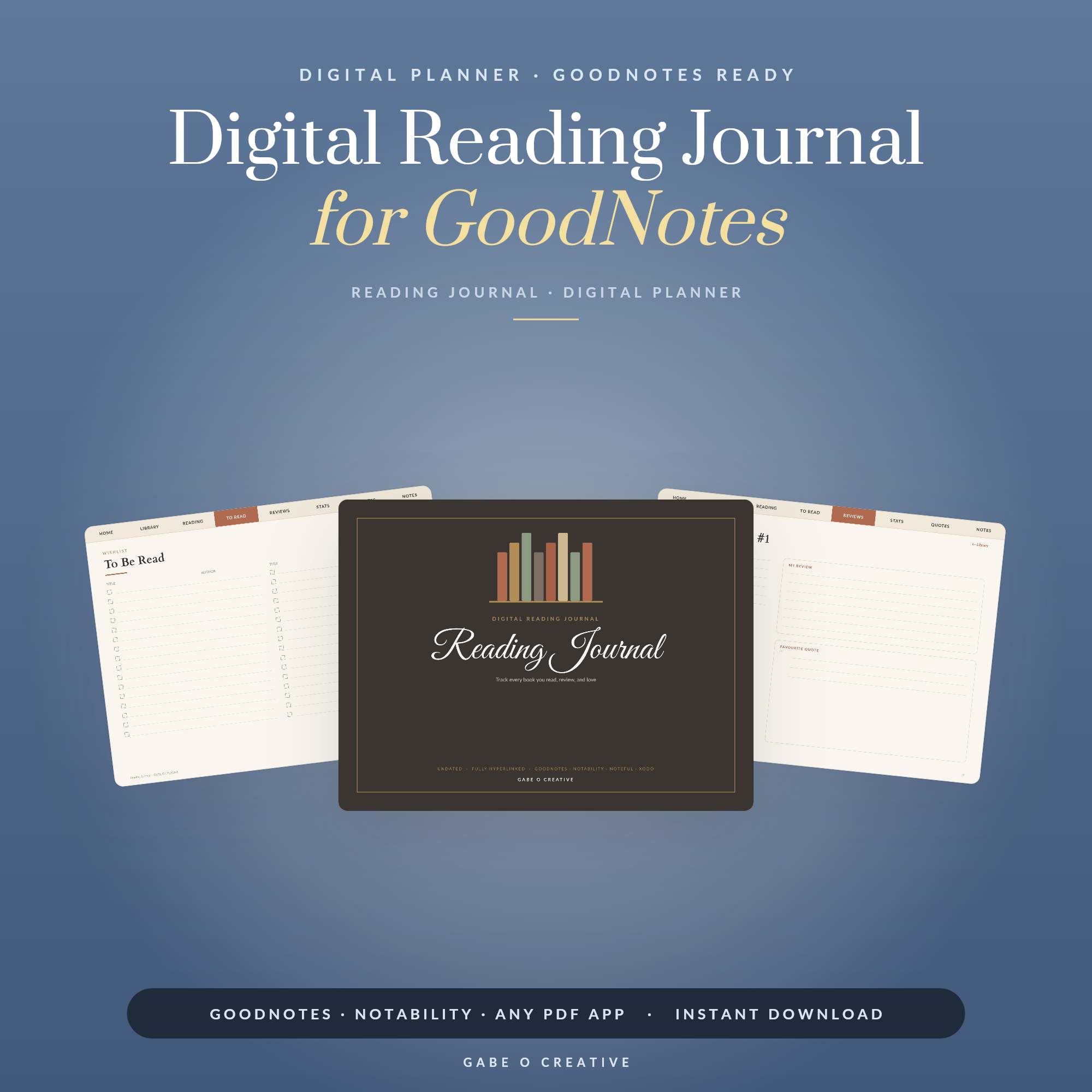 Shop Digital Reading Journal for GoodNotes →
A quick tip for stickers and decoration
Digital stickers and printables can make your planner more fun to use, and the same design ideas carry over to celebrations too. If you enjoy decorating, our roundup of party printables and decor has creative elements you can repurpose inside GoodNotes for birthdays, holidays and themed weeks.
The best planner is the one you will open every day. Pick the layout that fits your life, not the one with the most pages.
Digital Planner FAQs
Why does tapping a tab draw a line instead of jumping to the page?
Because you're in writing mode. GoodNotes only follows a hyperlink in read-only mode or with the selection tool — otherwise every tap would be a pen stroke. Switch off the pen and the tabs jump correctly; the planner's links are fine.
Do I need GoodNotes to use a digital planner?
No. A hyperlinked PDF digital planner works in GoodNotes, Notability, Xodo and most PDF annotation apps. GoodNotes is simply the most popular because its tabs and links feel smooth on an iPad.
How do I import a digital planner into GoodNotes?
Download the PDF, open the share menu and choose Open in GoodNotes, or use Import from the GoodNotes library. The planner appears as a new notebook with all hyperlinks and tabs ready to tap.
Can I use a digital planner on Android or Windows?
Yes. Any device with a PDF app that supports annotation will work, including Android tablets with Xodo and Windows with Drawboard. The hyperlinks function the same across platforms.
Are digital planners better than paper planners?
They are if you want unlimited pages, instant navigation and no clutter. You can undo mistakes, move pages and carry every planner on one device, which paper simply cannot match.
How much should a good digital planner cost?
Most quality digital planners cost only a few pounds as a one-time purchase. Our planners start at £2.99, far cheaper than subscription apps, and you can reuse them year after year.
Ready to go paper-free? Start with the all-in-one Daily, Weekly and Monthly planner for a complete GoodNotes setup, add the digital reading journal if you love books, or browse the whole Digital Planners collection to find your perfect match. Your iPad is about to become your favourite planner.