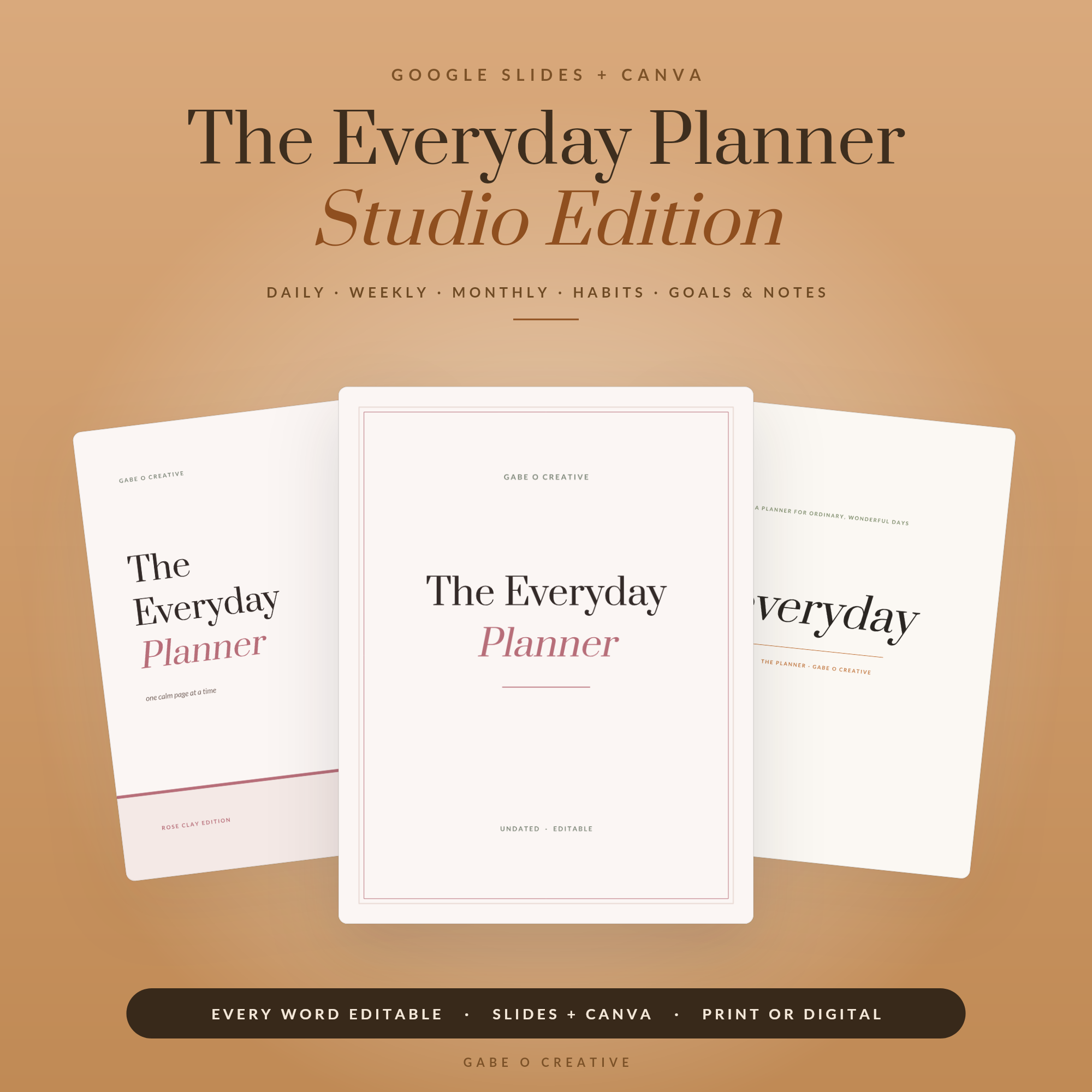
An editable planner template is the difference between using someone else’s system and building your own. A static PDF hands you a finished object: whatever the designer chose, in the order they chose it. An editable template hands you the actual design file, so you can rename the sections, change the colours, delete the pages you will never use and add the ones you actually need. The Everyday Planner Studio works exactly this way — one file, opened in Canva or Google Slides, reshaped around your week.
If you have ever bought a beautiful printable and then quietly stopped using it because one section did not fit your life, an editable template is the fix.
What Makes a Template "Editable" (and Why It Matters)
"Editable" is used loosely online, so it is worth being precise. There are three tiers, and only one of them gives you real control.
The first tier is a flat PDF. It is an image of a page. You can print it, and that is all. The second tier is a fillable PDF, which adds typeable form boxes — useful, but the boxes are fixed where the designer put them, and you cannot change a heading or move anything. The third tier is a true editable template: a Canva or Google Slides file where every element is a real object you can select, retype, recolour, move or delete.
That third tier matters because planning is personal. A meal planner built around three meals a day is useless if you batch-cook twice a week. A budget page with twelve expense categories is noise if you have five. When the file is genuinely editable, the planner bends to your habits instead of asking your habits to bend to it — which is the single biggest reason planners get abandoned by February.
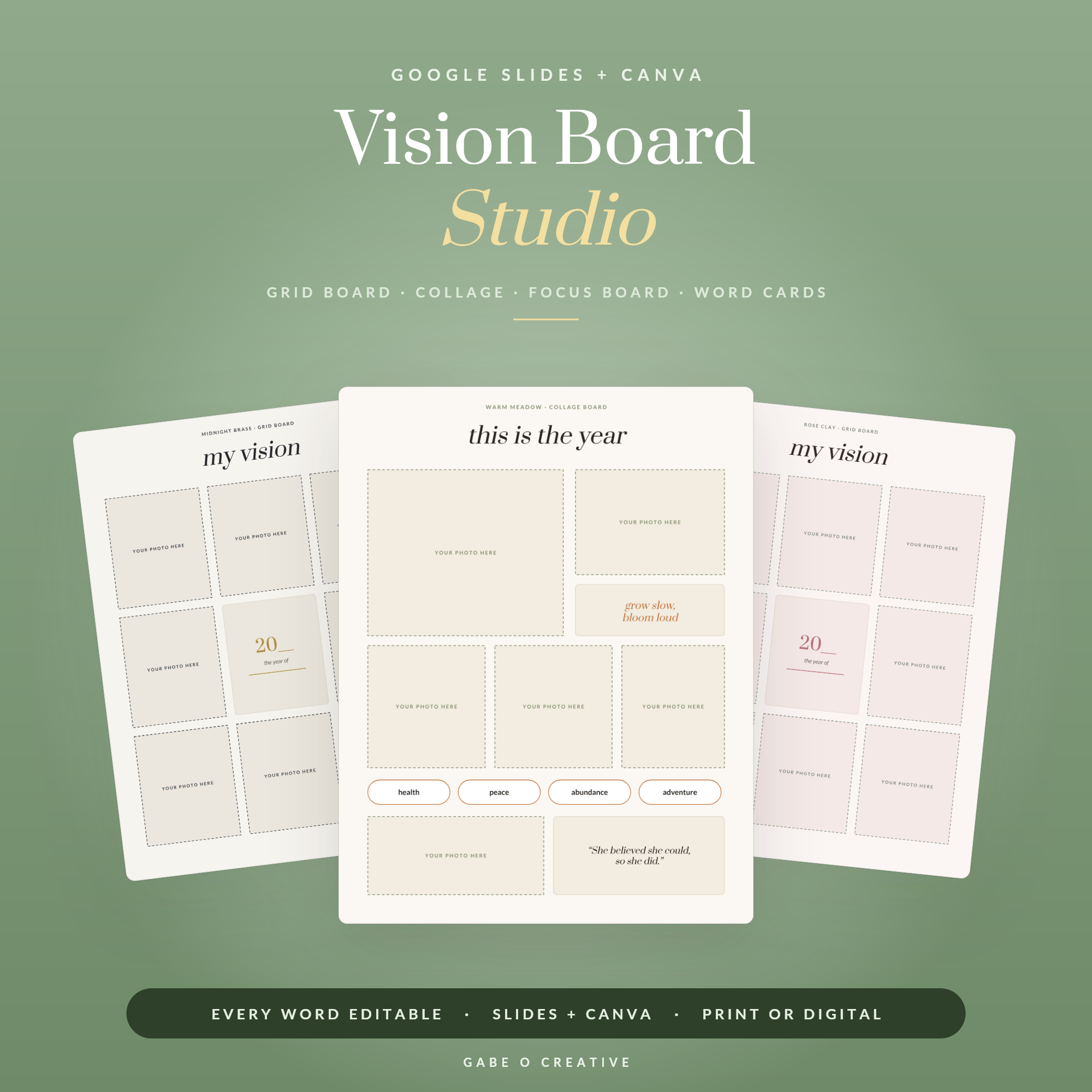 Shop Vision Board Studio — Editable Google Slides + Canva Vision Board Kit: 3 Board Layouts, 3 Themes, Word & Quote Cards, Digital or Printable →
Editable vs Static PDF: Which Should You Choose?
Both have a place. A static printable is quicker if the layout already suits you and you just want to print and go. An editable template is better when you want the planner to match a specific routine, a business, or your own colour scheme. Here is the honest comparison.
| Static printable PDF | Editable template | |
|---|---|---|
| Change the wording | No | Yes — every heading and label |
| Change colours and fonts | No | Yes |
| Add or remove pages | No | Yes |
| Software needed | Any PDF reader | Free Canva or Google Slides account |
| Time to first print | Under a minute | 10–30 minutes of setup |
| Reuse next year | Only if undated | Yes — edit the dates and reprint |
| Best for | A layout that already fits | A routine, brand or business that is specific |
The trade-off is simply time. You spend twenty minutes once, and in exchange you get a planner that does not irritate you every week. For anything you will use repeatedly — a weekly reset, client onboarding, a recipe book — that trade is worth making.
How to Edit Your Template in Google Slides
Google Slides is the path of least resistance because it is free, browser-based and nothing needs installing. The flow is always the same.
Make your own copy first
Open the template link and choose File → Make a copy. This is the step people skip, and it matters: the copy lands in your Google Drive and belongs to you. The original stays untouched, so if you make a mess you can always come back and copy it again fresh.
Edit text, then structure
Click any text to retype it. To change a colour, select the shape and use the paint-bucket icon. To remove a page you will not use, right-click its thumbnail in the left-hand panel and delete it. To duplicate a page — a second weekly spread, say — right-click and choose Duplicate. Work in that order: wording first, then layout, then colour. Doing colour first is how twenty minutes becomes two hours.
Export when you are happy
Choose File → Download → PDF Document. That is your print-ready file. Keep the Slides version in Drive so next month you can tweak and re-export rather than starting again.
How to Edit It in Canva Instead
Canva suits people who want more visual control — nicer fonts, image frames, brand colours. Open the template link, and Canva creates your own editable copy automatically. Double-click text to retype it; use the colour swatches at the top to recolour a selected element; use the page menu to duplicate or delete pages.
Two things worth knowing. First, the free plan is genuinely enough — text, colours, layout and PDF download all work without paying. Second, if you are making something branded, set your colours once at the start and apply them consistently rather than picking shades page by page; the finished planner looks far more professional for it. This is exactly how the Client Welcome Packet and the Media Kit Studio are designed to be used — drop in your own brand, export, send.
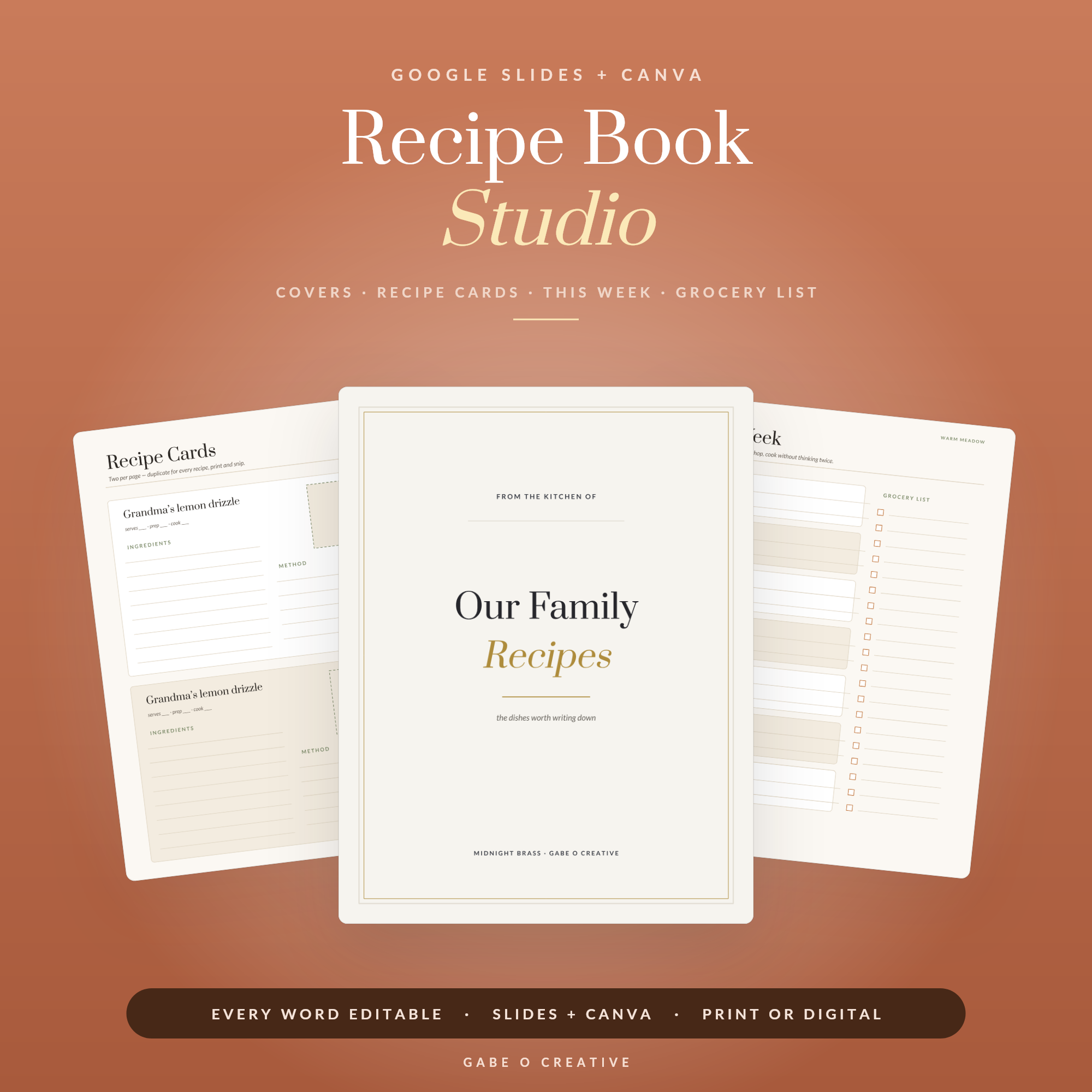 Shop Recipe Book Studio — Editable Google Slides + Canva Recipe Binder: Recipe Cards, Meal Plan & Grocery List, 3 Themes, Family Cookbook Template →
What You Can Build With One Template Pack
The useful mental shift is to stop thinking of a template as "a planner" and start thinking of it as a set of pages you can recombine. One editable pack usually covers far more ground than its title suggests.
A weekly spread becomes a habit tracker if you retitle the columns. A notes page becomes a meeting log. The Recipe Book Studio is a recipe collection out of the box, but people use the same file to build a family cookbook, a meal-prep binder or a gift for a relative. The Vision Board Studio is a vision board, but the same layouts work as a goal-setting workbook or a quarterly review — there is more on that in our digital vision board guide.
If you prefer working on a tablet rather than paper, the exported PDF drops straight into a note-taking app; our guide to using a digital planner in GoodNotes walks through that setup. And if you want to browse the full range of editable files rather than fixed printables, the Google Slides & Canva collection is the place to start.
Making the Setup Stick
Editable templates fail for one predictable reason: people customise endlessly and never actually use the thing. Give yourself a deadline. Spend half an hour on the first pass, print it or load it onto your tablet, then use it for two weeks before changing anything else. Real use tells you what is wrong far more accurately than staring at the file does.
After a fortnight, go back and make one round of edits based on what genuinely annoyed you. That second pass is usually small — a renamed column, one page deleted — and it is the version you will keep. Save that file somewhere obvious in Drive so re-printing next month takes thirty seconds, not a search.
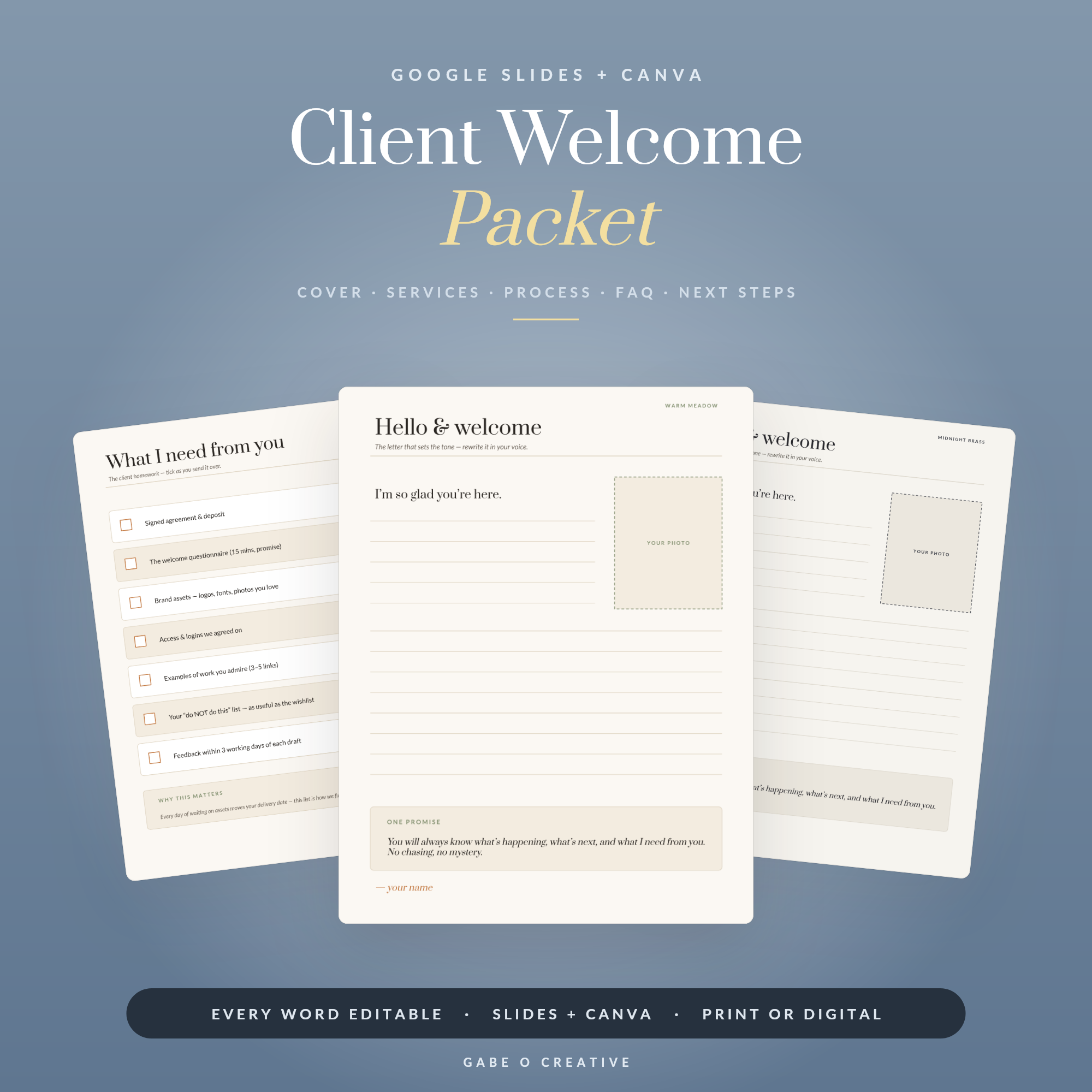 Shop Client Welcome Packet — Editable Google Slides + Canva Template for Freelancers & Coaches: Welcome Letter, Services, Process, FAQ, 2 Themes →
Editable Planner Template FAQs
What is an editable planner template?
It is a planner supplied as a design file rather than a flattened PDF. You open it in Canva or Google Slides and can change the text, colours, fonts, layout and which pages you use. A static PDF only lets you print what is already there; an editable template lets you rebuild it around your own week.
Do I need a paid Canva account to edit one?
No. Everyday editing — text, colours, moving elements, deleting pages, downloading as PDF — works on the free Canva plan. Paid features like Brand Kit or premium stock images are optional extras, not requirements for using the template.
Can I edit it in Google Slides for free?
Yes. Google Slides is free with any Google account. You open the template link, choose "Make a copy", and the whole planner lands in your own Drive where you can edit every page. Nothing is installed and nothing expires.
Can I print an editable template at home?
Yes. Once you have finished editing, export or download it as a PDF and print it like any other printable. Both Canva and Google Slides export print-ready PDFs, and you can print as many copies as you like, as often as you like.
Can I use it on an iPad instead of printing?
Yes. Export the finished file as a PDF and open it in a note-taking app such as GoodNotes or Notability, or simply use the Canva and Google Slides apps directly on the tablet. Many people do both — digital on weekdays, printed for the weekly reset.
Do I have to re-edit it every year?
No. Most editable planners are undated by design, so the same file carries over indefinitely. You change the dates or the month heading and reuse it, which is exactly why an editable file outlasts a dated printable you replace every January.
Ready to build a planner that actually fits your week? Get the Everyday Planner Studio — fully editable in Canva or Google Slides, undated, and yours to reprint forever.