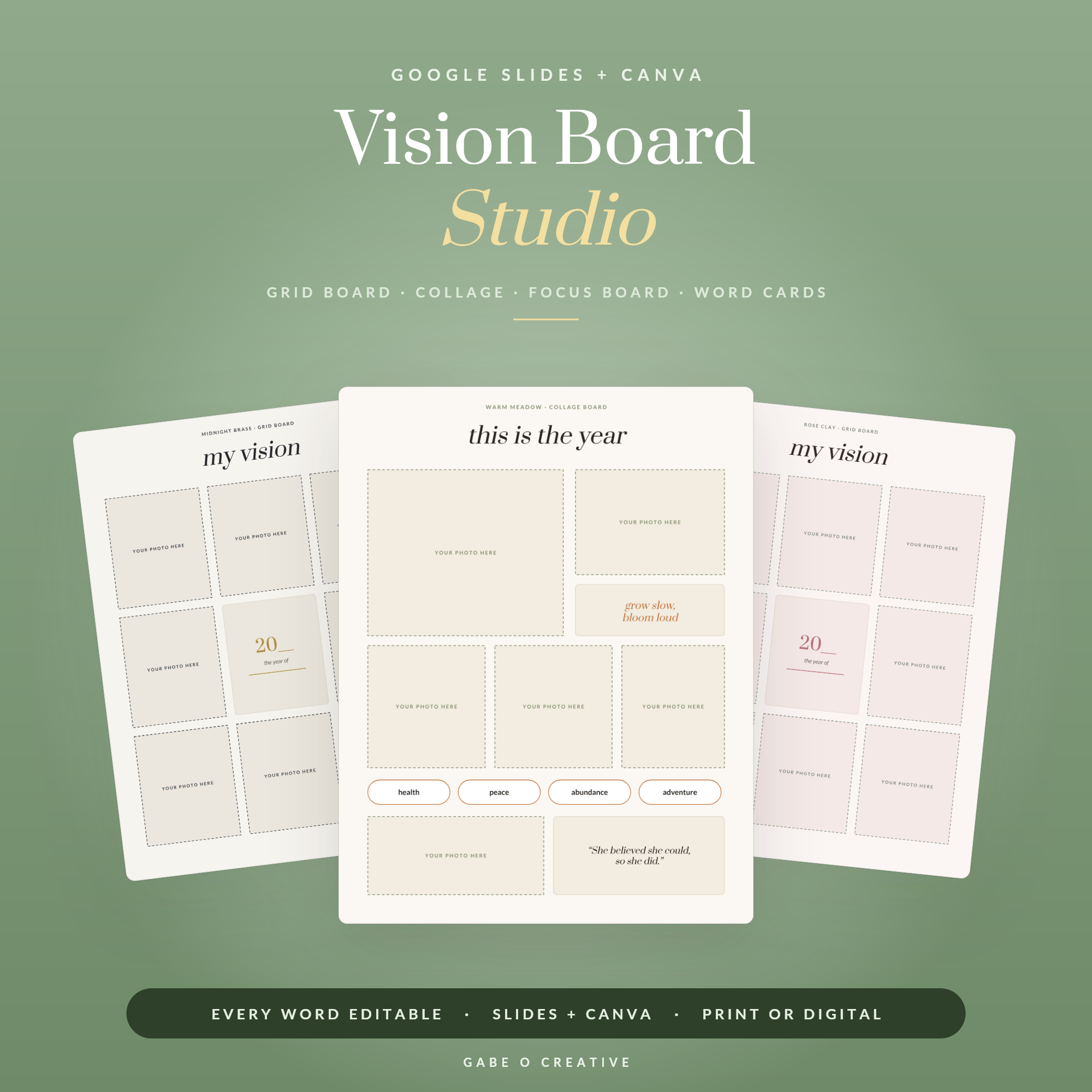
The problem with most vision boards is not the vision — it is the board. A digital vision board fixes the single biggest failure of the corkboard version: visibility. The collage you made in January is rolled up behind the wardrobe; a digital board becomes your phone lock screen, your laptop wallpaper and your tablet home page, working on your attention dozens of times a day without asking anything of you. This guide covers what actually belongs on a board, the 30-minute build in Google Slides or Canva, the export sizes for every screen, and how to wire the pictures to real plans. Our Vision Board Studio gives you the designed template in both Google Slides and Canva — drop in your images and export.
Want the designed version? The Vision Board Studio for Google Slides & Canva comes with layouts, frames and phone/desktop export sizes ready to go.
Why digital beats the corkboard
Vision boards work through repeated exposure: the more often concrete images of your goals cross your attention, the more 'live' those goals stay in your mind — and live goals quietly steer hundreds of small daily decisions. That mechanism has one requirement: you have to actually see the thing. The physical board loses that battle within weeks; it becomes furniture. Your phone, meanwhile, gets looked at 50–100 times a day, and whatever is on the lock screen gets a half-second of your attention every single time. Digital also means editable — a goal achieved gets replaced in two minutes instead of demanding a whole new craft afternoon — and it travels everywhere you do.
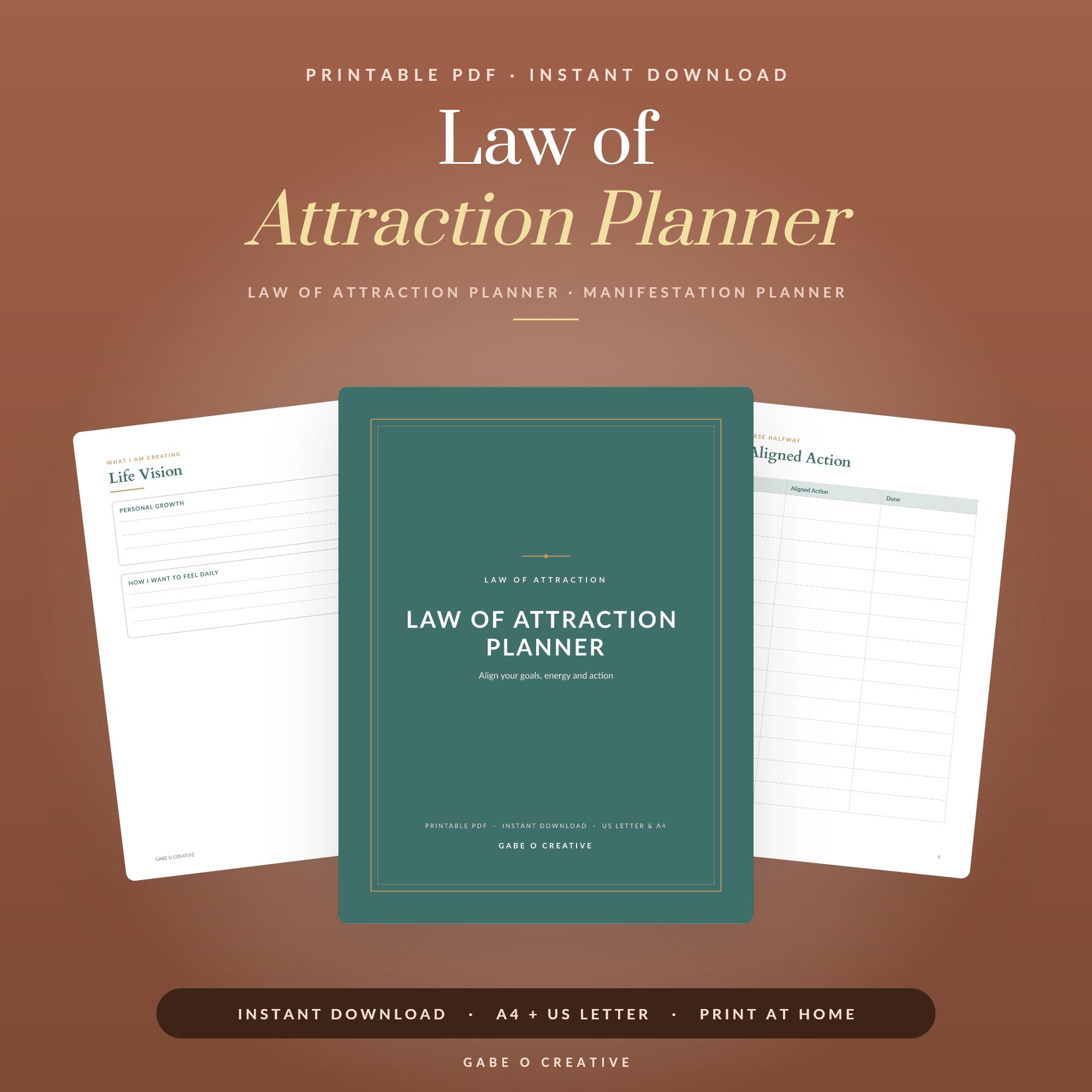 Shop Law of Attraction Planner →
What belongs on the board (and what doesn't)
The strongest boards are edited, not exhaustive. Aim for six to ten items, each specific enough that you would recognise its achievement: the actual city you intend to visit, the emergency-fund number, the 10k finish line, the reading chair in the corner you are saving for. Generic mansion-and-yacht stock photos blur into visual noise your brain learns to skip. Mix three kinds of item: images that trigger genuine feeling (the specific place, not 'a beach'), two or three words or numbers ('£5,000 by June', 'published'), and one identity line — who you are becoming, not just what you are getting. If it helps, structure the board into life areas — health, money, home, relationships, growth — one strong image each.
The feeling test
Before an image earns its place, ask: does looking at it produce an actual flicker of feeling? If it is just 'nice', keep scrolling. Six images that spark beat thirty that decorate.
The 30-minute build
Open a blank page in Google Slides or Canva (or skip the layout fiddling with the Vision Board Studio template). Set the page to 9:16 portrait if the phone is your main screen. Gather images for 10 minutes — your own photos are more powerful than stock, because your brain recognises your real life in them. Arrange with intention: the single most important goal gets the largest frame and the centre; supporting goals orbit it. Add your two or three words in one clean font. Then export:
| Screen | Size / ratio | Where it lives |
|---|---|---|
| Phone lock screen | 9:16 portrait (e.g. 1080×1920) | Seen 50–100× a day — the workhorse |
| Laptop / desktop wallpaper | 16:9 landscape (e.g. 2560×1440) | Every work session starts with it |
| Tablet / print | 4:5 or A4 portrait | Bedside, desk, journal insert |
Set the exports as wallpapers immediately — the board that stays in a folder is the corkboard problem all over again.
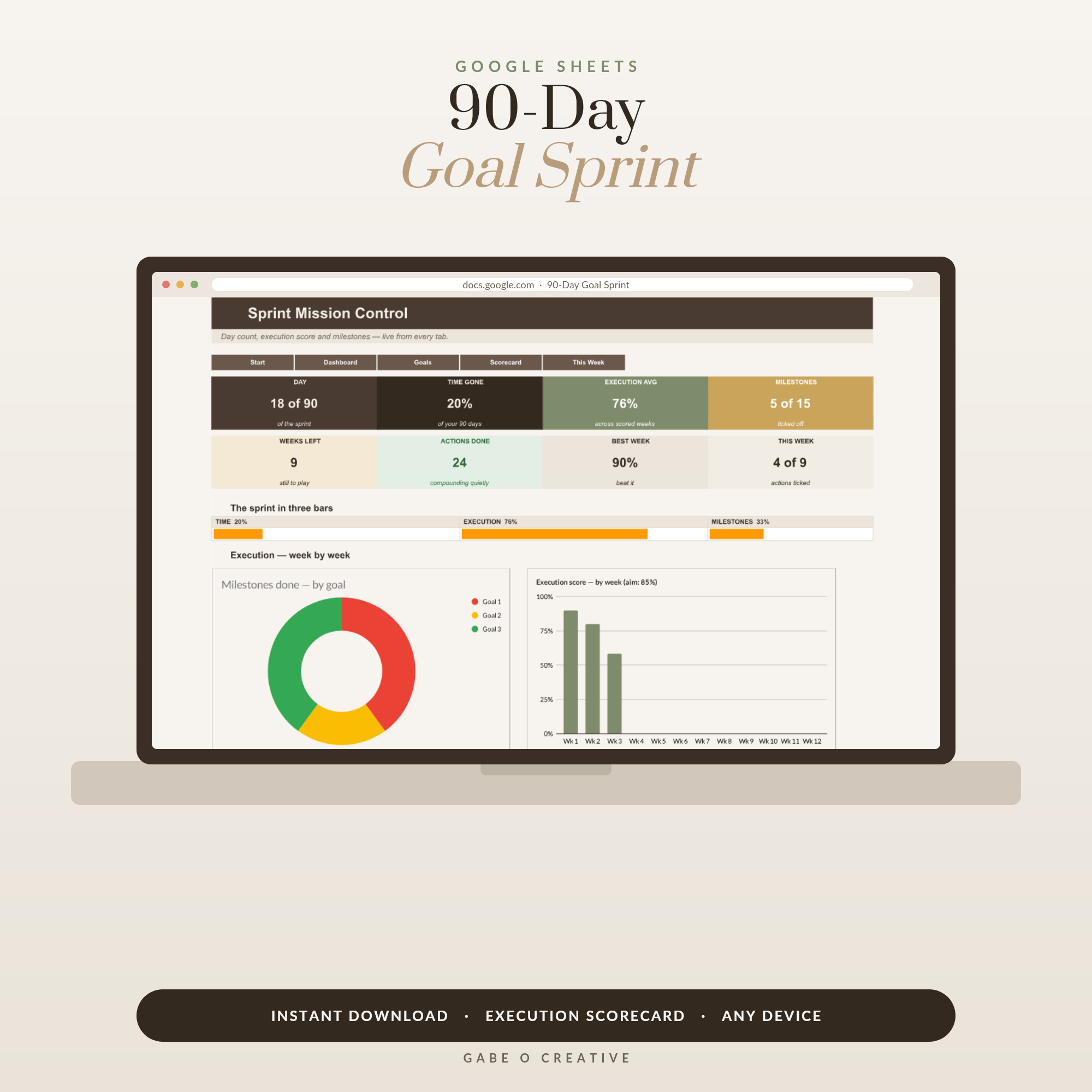 Shop 90 Day Goal Planner Google Sheets, Quarterly Goal Setting Spreadsheet with 12 Week Scorecard, Milestone Tracker & Weekly Action Planner →
Wire the pictures to a plan
Visualisation on its own is a pleasant screensaver; visualisation attached to action steps is a system. For each image on the board, write one sentence somewhere real: the next physical action toward it. The travel image gets 'price flights for October'; the savings number gets 'standing order £250 on payday'. This is where the board hands over to planning tools — the Law of Attraction Planner pairs the mindset work with scripting and gratitude practice, and the 90-Day Goal Sprint turns one board image into a twelve-week plan with weekly checkpoints (our 90-day goals guide explains why the quarter beats the year). If you prefer paper for the reflective side, the printable vision board works beautifully as the journal companion to your digital screens.
Keep it alive: the quarterly refresh
A board set in January and never touched becomes invisible by March — your brain habituates to anything static. Book a five-minute review at each season change: remove anything achieved (celebrate it, then replace it with the next goal), swap any image that has stopped producing the flicker, and re-export the wallpapers. Achieved-and-replaced is the rhythm that keeps the board a living instrument instead of a nostalgic screenshot. One practical note: your lock screen is semi-public — colleagues see it when your phone lights up on a desk. If some goals feel too private for that, use symbolic images only you can decode (the mountain that means the business goal, the colour that means the number), and keep the explicit version on the tablet page or in your journal. A board you feel comfortable being seen with is a board you will actually keep on the screen. And if you want the whole planning life in one matching set, the Everyday Planner Studio shares the same editable Slides-and-Canva format — browse the full Manifestation & Mindset collection for the rest.
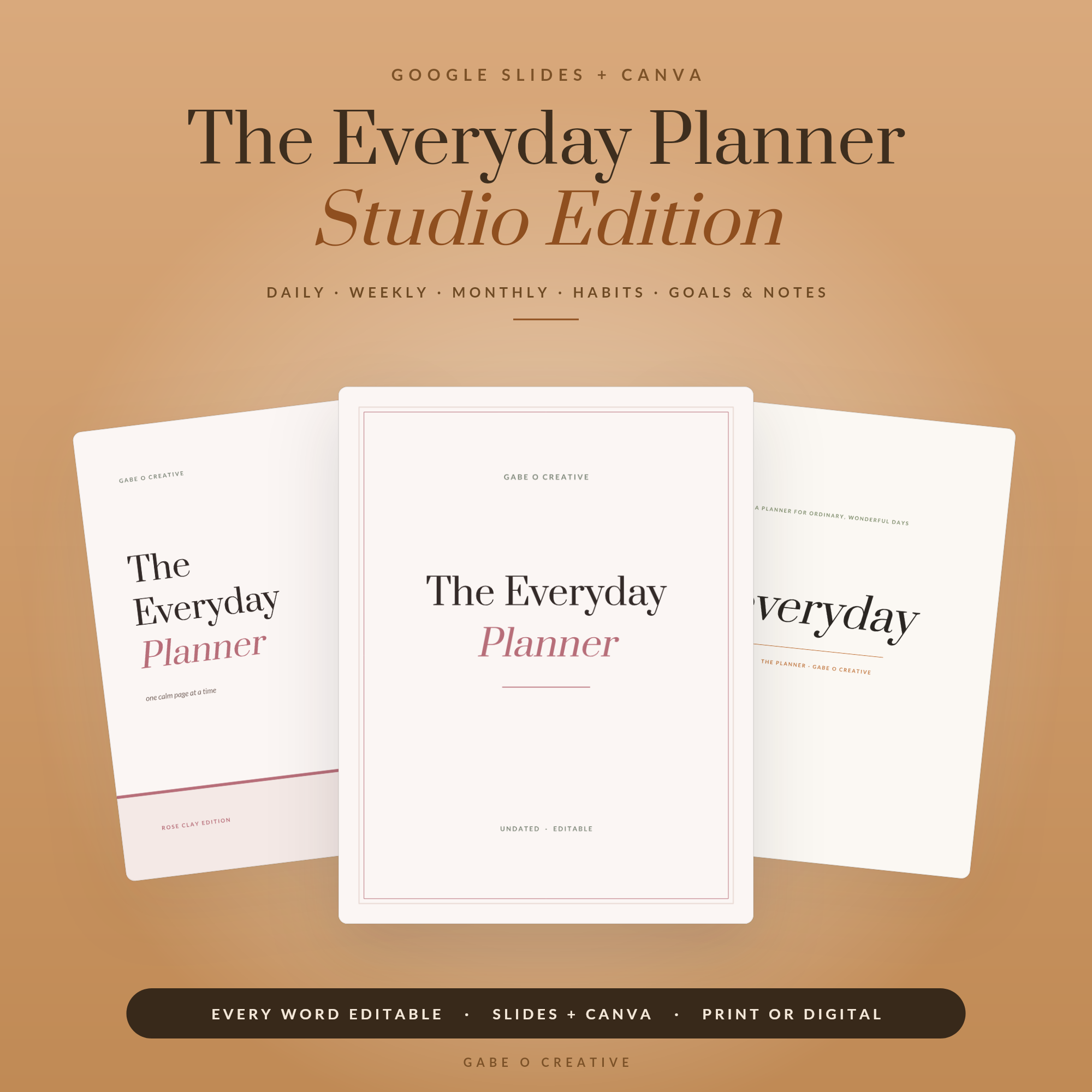 Shop The Everyday Planner — Studio Edition, Editable Google Slides + Canva Planner: 15 Covers, 3 Themes, Daily Weekly Monthly Habit & Goal Pages, Undated →
Frequently asked questions
What is a digital vision board?
The same idea as a corkboard collage — images and words representing your goals — built as a digital page in Google Slides, Canva or a similar tool. Because it is a file, it can become your phone lock screen, laptop wallpaper and tablet page, so you actually see it every day instead of once.
Is a digital vision board better than a physical one?
It wins on the thing that matters most: exposure. You look at your phone dozens of times a day and your wallpaper is there every time. It is also editable — swap an image when a goal evolves instead of starting again — and it travels with you. The best board is whichever one you will genuinely see daily.
What should I put on my vision board?
Six to ten items maximum, each one specific: not 'money' but the emergency fund figure; not 'travel' but the city you are booking. Mix images that trigger real feeling with two or three short words or numbers. A crowded board of thirty generic stock photos blurs into wallpaper your brain stops seeing.
Do vision boards actually work?
Not by magic — by attention. Regularly seeing concrete goal images keeps those goals cognitively 'live', which nudges hundreds of small daily choices in their direction. The evidence is strongest when visualisation is paired with written action steps, which is why the board works best wired to a goal planner rather than instead of one.
How do I make my vision board my phone wallpaper?
Design the board at phone-screen proportions (9:16 portrait), export it as a PNG or JPG, send it to your phone, and set it as the lock screen. Make a second, wider version for your laptop wallpaper. Most template studios include both sizes ready to export.
How often should I update a digital vision board?
Do a proper refresh each season or quarter, and a small edit whenever a goal is achieved — replace it with the next one rather than leaving a finished goal to fade into the background. A five-minute quarterly review keeps the board honest and keeps your brain paying attention to it.
Build a board you'll see every single day: the Vision Board Studio for Google Slides & Canva has the designed layouts and every export size ready — 30 minutes from blank page to lock screen.