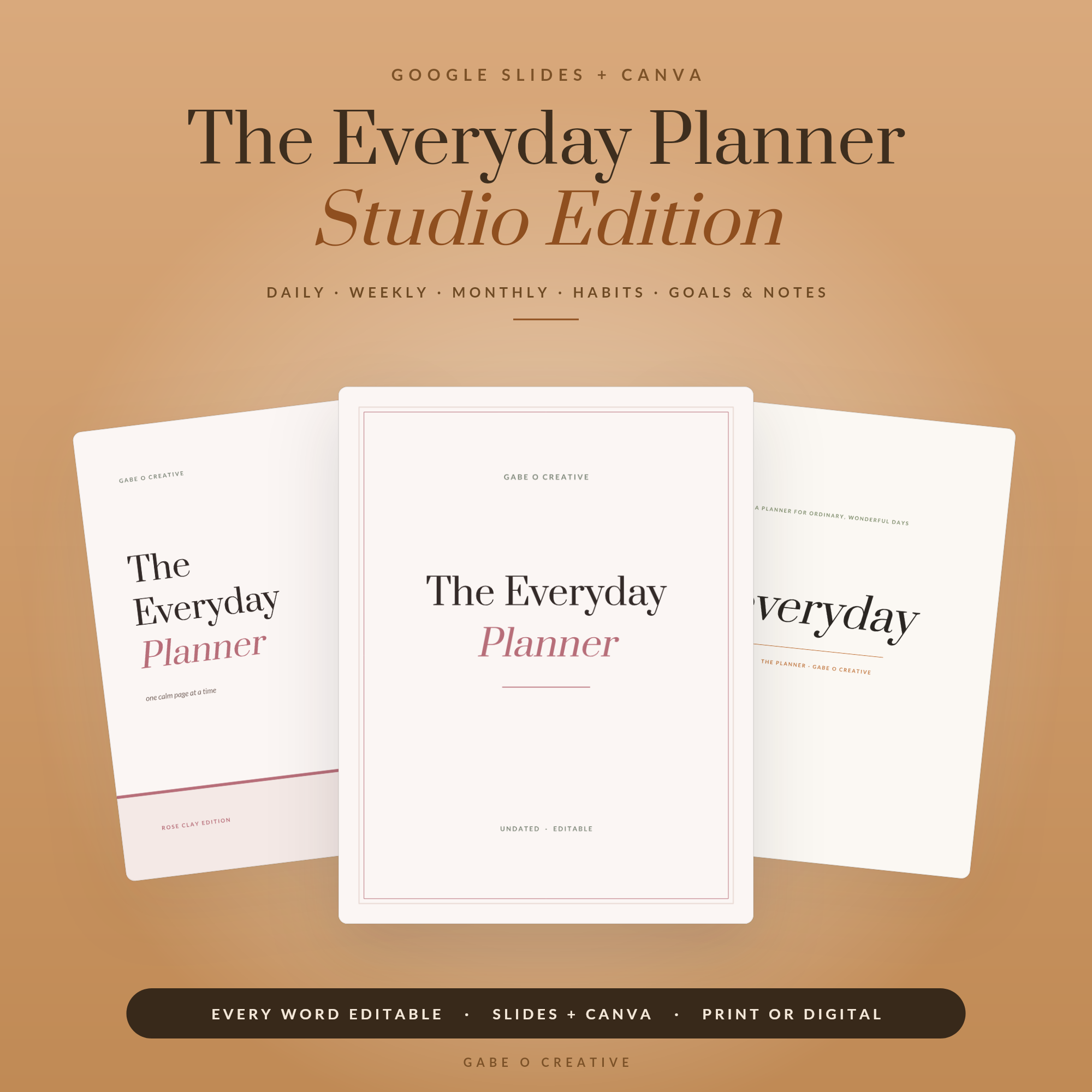
Knowing how to edit a Canva template is mostly knowing what order to do things in. Templates almost never break randomly — they break in the same handful of predictable ways, and nearly all of them come from editing in the wrong sequence. Change the font after you've fixed the spacing and you'll be fixing the spacing again. Resize at the end and you'll undo an hour's work. Get the order right and the whole thing takes fifteen minutes. Our Everyday Planner Studio is built to be edited, with free fonts and unlocked text so nothing fights you.
Editing something today? Open your editable planner template and follow the order below rather than diving into the first page.
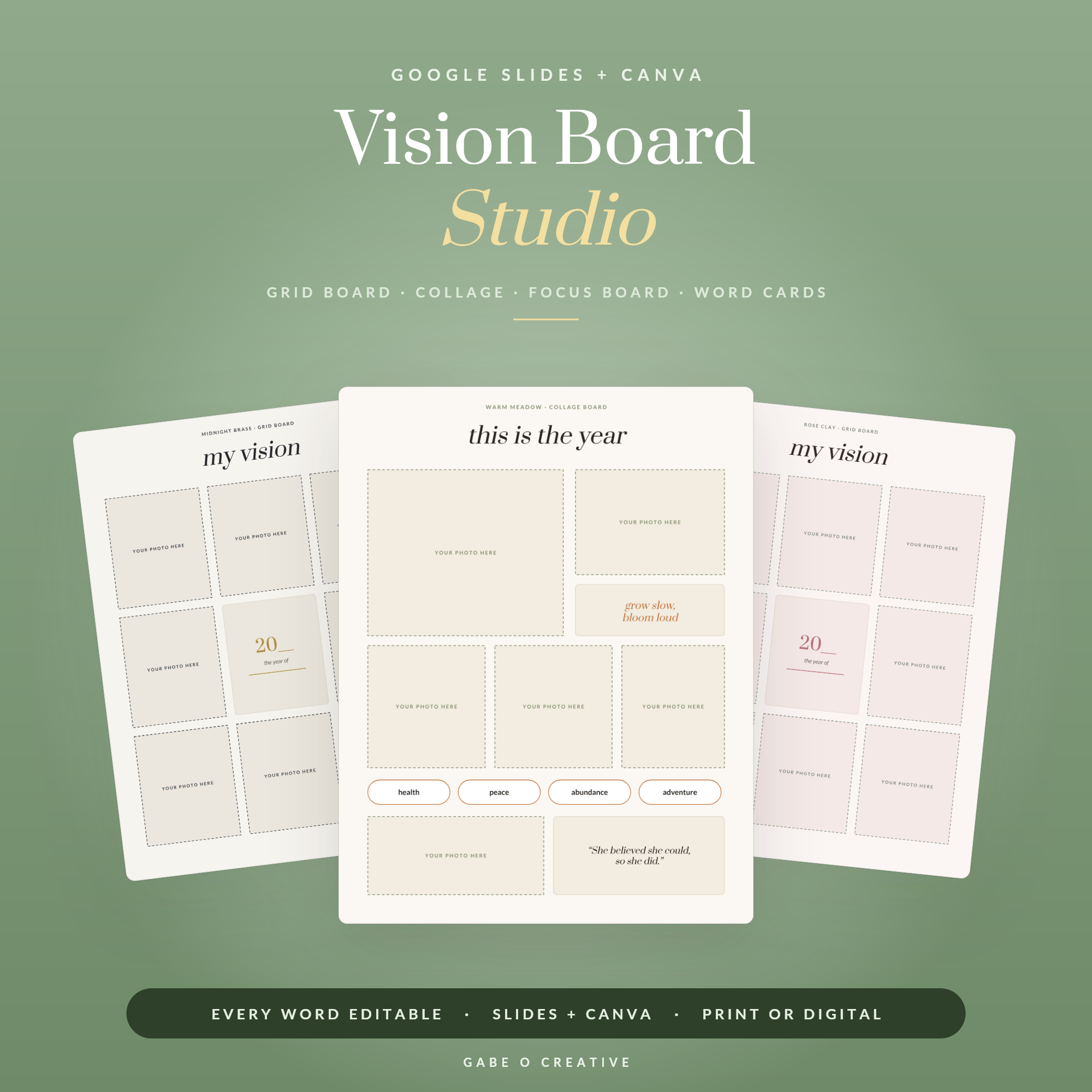 Shop Vision Board Studio — Editable Google Slides + Canva Vision Board Kit: 3 Board Layouts, 3 Themes, Word & Quote Cards, Digital or Printable →
The Order That Prevents Every Common Problem
- Duplicate the template first. Work on a copy, always. Canva's undo history won't save you three days later.
- Set the size. If you need US Letter rather than A4, resize now — before a single edit.
- Fix the fonts. Whatever fonts the template names, set them now. This is the step people skip and then spend an hour repairing.
- Set the colours globally, not page by page.
- Then change the words.
- Adjust spacing last, once nothing structural will move again.
Every item on that list moves things that come after it, and nothing moves things before it. That's the whole logic.
Why Your Text Jumps (The Font Problem)
This is the single most common complaint about any template, and it isn't a fault in the file. If a font isn't available to your account, the app substitutes a different one. The replacement has different letter widths, so a heading that fitted on one line now wraps onto two, spacing shifts, and the page looks subtly wrong in a way that's hard to name.
The fix is to set the font before anything else. If the named font genuinely isn't available to you, pick one alternative and apply it everywhere rather than leaving a mixture — inconsistent fonts read as amateur far more than an unusual font choice does.
Two fonts, maximum
Most well-designed templates use two: one for headings, one for body text. When people describe an edited template as looking "off", a third font is very often the reason.
Resizing Without Scattering Everything
Canva's Resize tool scales element positions rather than genuinely reflowing the design, so a resized template usually needs nudging afterwards — text boxes end up slightly off the grid, and margins that were even become uneven.
| Change | When | Why |
|---|---|---|
| A4 ↔ US Letter | Before editing | Different proportions; everything shifts |
| Portrait ↔ landscape | Before editing | Effectively a redesign, not a resize |
| Print → social size | Before editing | Ratios differ hugely; expect to rebuild pages |
| Adding pages | Any time | Duplicate an existing page rather than starting blank |
That last row is worth its own sentence: always duplicate a page rather than adding a blank one. A duplicated page inherits the margins, fonts and spacing; a blank page inherits nothing, and matching it by eye never quite works.
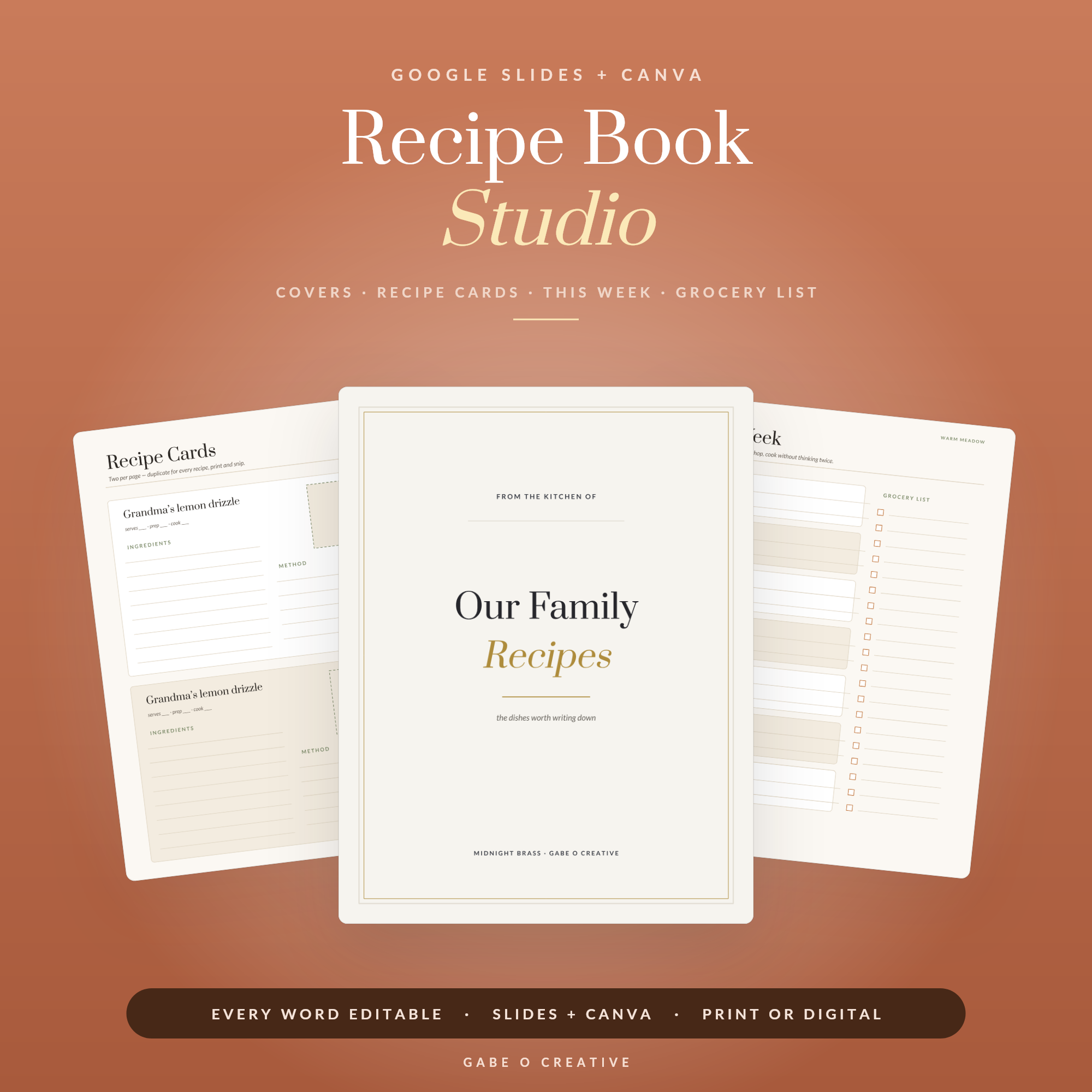 Shop Recipe Book Studio — Editable Google Slides + Canva Recipe Binder: Recipe Cards, Meal Plan & Grocery List, 3 Themes, Family Cookbook Template →
Locked Elements and Pro Elements
If something won't select or move, it's locked — usually on purpose. Background shapes, borders and alignment guides get locked so you can't drag them out of place while editing text. Click the element and then the padlock icon to unlock it, and lock it again afterwards.
Separately, a crown icon or a watermark on download means the element is Canva Pro. A well-made template shouldn't contain any — ours are deliberately built with free elements and fonts so the free plan is enough. If you hit one in a template from elsewhere, swap it for a free alternative rather than paying for a subscription to use one graphic.
Keeping It Looking Professional
The most useful advice is also the least satisfying: change as little as possible. The spacing, alignment and white space in a good template are doing more work than they appear to, and the commonest way an edited template ends up looking worse is someone filling the empty space.
- Keep the margins. Don't push text closer to the edges to fit more in.
- Keep the alignment. If headings are left-aligned, leave them left-aligned.
- Cut words rather than shrinking type. Reducing font size to fit is what makes a page look cramped.
- Leave the white space alone. It's a design element, not wasted room.
When you're done, export as PDF Print rather than an image — image exports are fixed-resolution and print soft. Our guide to editable planner templates covers the wider workflow, and if you're deciding which app to use in the first place, Google Slides vs Canva lays out where each one wins. For a worked example from opening the file to printing it, see the Canva recipe book walkthrough.
Once you're comfortable editing one, the rest of the range works the same way — the Vision Board Studio, the recipe book, the media kit and the client welcome packet all share the same structure and unlocked text.
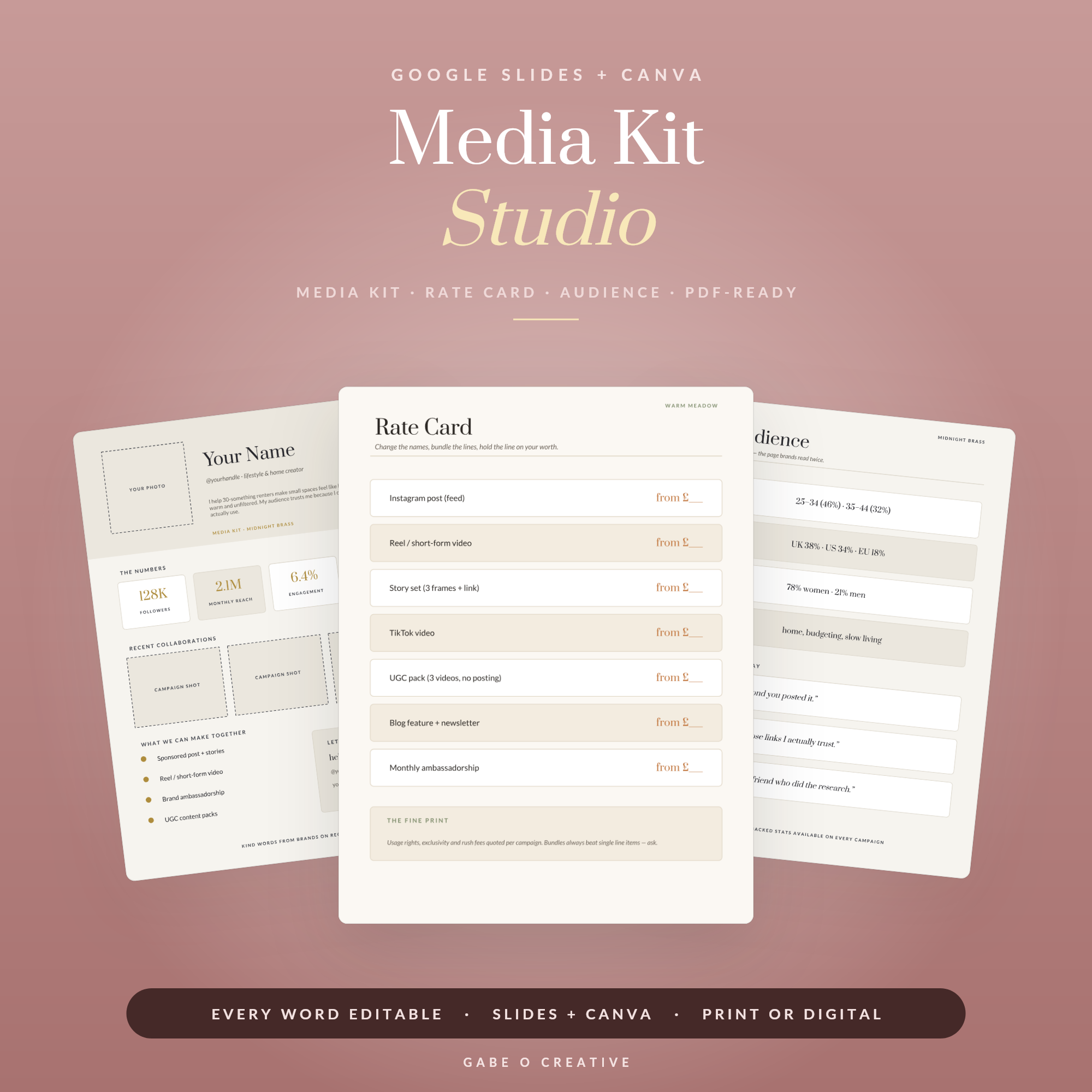 Shop Media Kit Studio — Editable Google Slides + Canva Media Kit for Creators & Influencers: One-Page Kit, Rate Card & Audience Page, 3 Themes →
Fixing the Four Things That Go Wrong
When an edited template looks wrong but you can't say why, it's almost always one of these.
Text overflowing its box. Canva shrinks type automatically inside a fixed text box, so a longer word can silently reduce a heading to a smaller size than the rest of the page. If one heading looks slightly off, check its font size against another — matching them usually solves it, and cutting a word solves it properly.
Uneven margins after moving something. Turn on the rulers and guides rather than eyeballing it. Canva snaps to guides but not reliably to "about the same distance as the other one", which is what your eye is doing.
Colours that no longer match. This happens when some elements were changed with 'change all' and others individually. The fix is to pick up the exact colour with the eyedropper from an element you know is right, rather than choosing a similar-looking swatch.
The whole thing looking crowded. Nearly always because text was added without removing any. A template's spacing assumes roughly the amount of text it shipped with — if you've added three lines to a page, something else has to go.
When it's genuinely faster to start again
If you've changed the size after editing, or swapped fonts three times, duplicating the original template and redoing the edits in the right order is usually quicker than repairing what you have. Ten minutes of clean work beats forty minutes of nudging.
Editing Canva Templates FAQs
Why does my Canva template look different when I open it?
Almost always a missing font. Canva substitutes one it does have, and the replacement has different letter widths, so headings wrap onto two lines and spacing shifts. Set the font first and the layout usually snaps back.
How do I change the colours across a whole template?
Select an element in the colour you want to change, click the colour swatch, and use the 'change all' option Canva offers. Doing it page by page is where inconsistency creeps in.
Why can't I click or move some parts of the template?
They're locked, usually deliberately — background shapes and guides get locked so you don't drag them by accident. Select the element and click the padlock to unlock it.
Can I resize a template from A4 to US Letter?
Canva's Resize tool will do it, but it scales positions rather than reflowing the design, so expect to nudge things afterwards. Always resize first and edit second — resizing after editing undoes your work.
Do I need Canva Pro to edit a template?
Not for a template built with free elements. If you see a crown icon on an element or a watermark on download, that piece is Pro — swap it for a free alternative or upgrade.
How do I keep the design looking professional after editing?
Change as little as possible. Keep the original spacing and alignment, limit yourself to two fonts, and resist filling white space — that space is doing more work than most people realise.
Try it on something built to be edited. Open the Everyday Planner Studio, or browse the full Google Slides & Canva collection — planners, invitations, media kits and business paperwork.