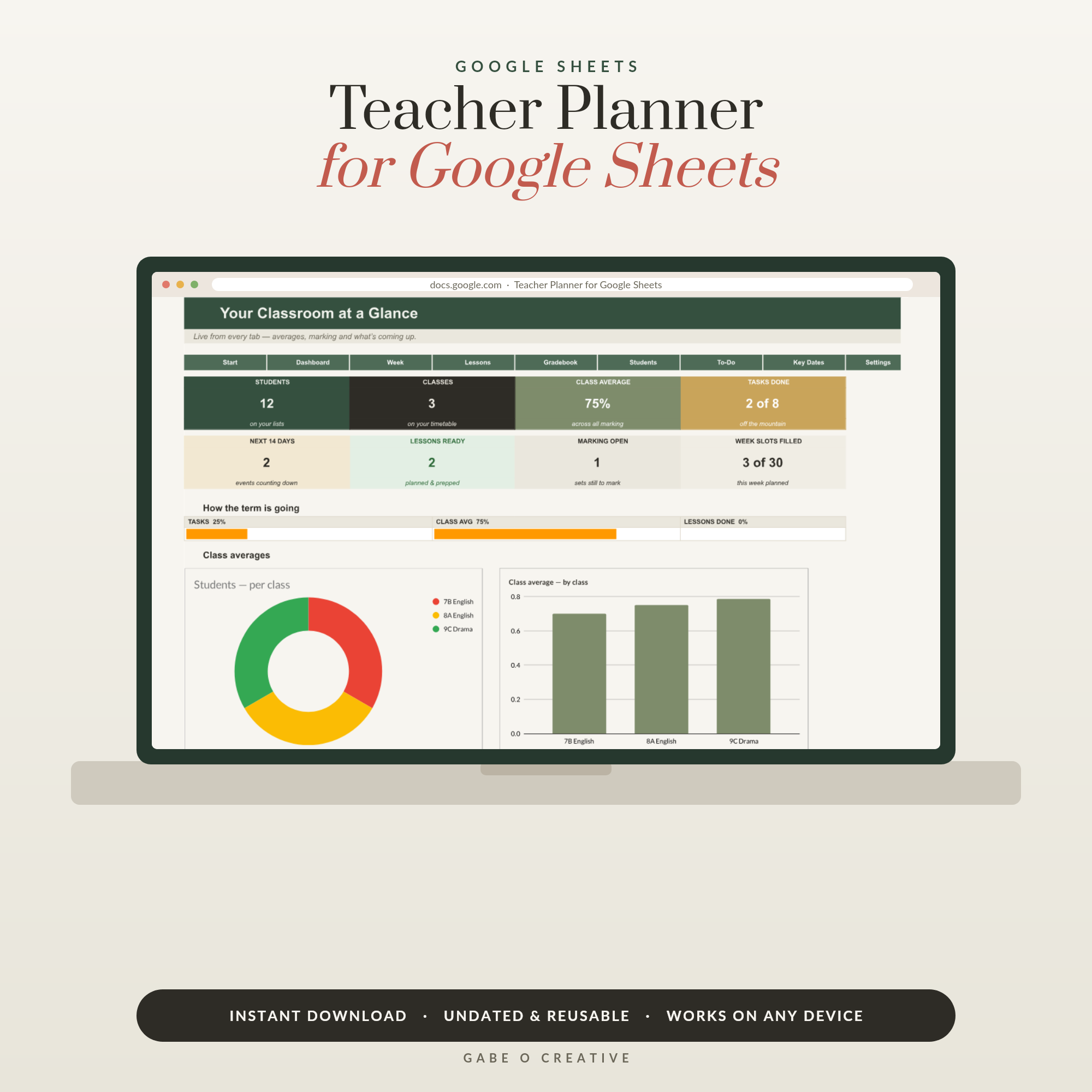
Every teacher knows the double-planning tax: the school system wants lesson objectives typed into boxes nobody reads, while your actual plan lives in a paper planner — which is currently in the classroom, while you're at home, on Sunday, trying to remember what 9B are doing tomorrow. A teacher planner in Google Sheets ends the split: one planner, on every device you own, built for how teachers actually work. Our Teacher Planner spreadsheet comes with the whole system ready — here's what makes it work.
Want it ready for September? The Teacher Planner in Google Sheets has the timetable, lesson rows, marking tracker and class notes pre-built — make a copy and set up your year in an evening.
Why spreadsheets suit teachers better than paper
Paper planners are lovely until October, when the timetable changes and the crossings-out begin. The spreadsheet version wins on four fronts: it's everywhere (school laptop, home laptop, phone at the photocopier — always the same, always current); it's searchable ('when did I last teach fractions to 7C?' takes three seconds, not an archaeology dig); it's reusable (September = duplicate, clear, keep the structure and your growing lesson library); and it's flexible (timetable changes are edits, not scribbles). None of which the school's data system offers, because that system was built for leadership dashboards, not for the person standing in front of 9B.
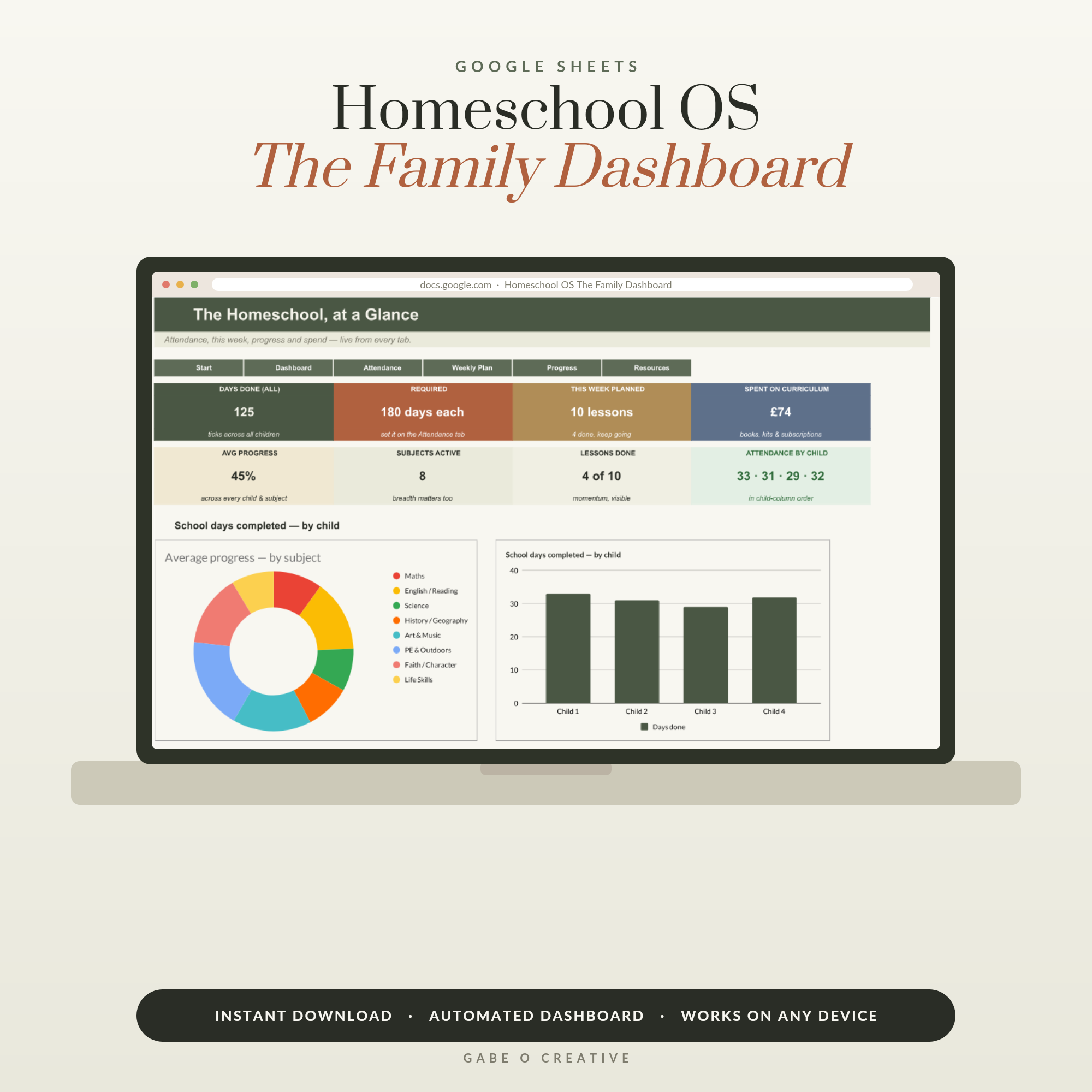 Shop Homeschool OS — Google Sheets Homeschool Planner Spreadsheet: Attendance Tracker, Lesson Planner, Progress & Curriculum Budget, Up to 4 Children →
The five tabs that run a teaching week
1. Timetable — your week at a glance, periods × days, with room numbers and duty slots. The anchor everything else hangs off.
2. Lesson plans — one row per lesson. This is the big unlock. Class, date, objective, main activity, resources link, homework set. The detail lives in your slides and worksheets; the planner is the map. A term of planning becomes scrollable, searchable history — and next year's starting point.
3. Marking tracker — what came in, from which class, when you promised it back. More below, because this tab saves the most sanity.
4. To-dos, triaged — today / this week / this term. Report deadlines, trip letters, display boards, the photocopying. Teachers carry a staggering admin load in their heads; the list carries it instead.
5. Class notes — one section per class: seating notes, who needs stretching, who's struggling quietly, wins to mention at parents' evening. Gold in October, priceless in July when reports are due.
The marking pile, made finite
Marking stress is rarely about volume — it's about vagueness. An unlogged pile is infinite; a logged one is arithmetic. Track each set like a small debt:
| Collected | Class · piece | Books | Due back | Done |
|---|---|---|---|---|
| Mon 6th | 9B · fractions assessment | 28 | Fri 10th | ✓ |
| Tue 7th | 7C · story openings | 30 | Mon 13th | — |
| Wed 8th | 10A · essay drafts | 26 | Tue 14th | — |
Suddenly the question isn't 'how do I face the pile?' but '56 books by Monday — that's 14 a day, done by Thursday'. Little-and-often beats the Sunday marathon for feedback quality too. The planner spreadsheet tracks due-backs with the same date-warning logic students get in our Assignment Tracker — fair's fair.
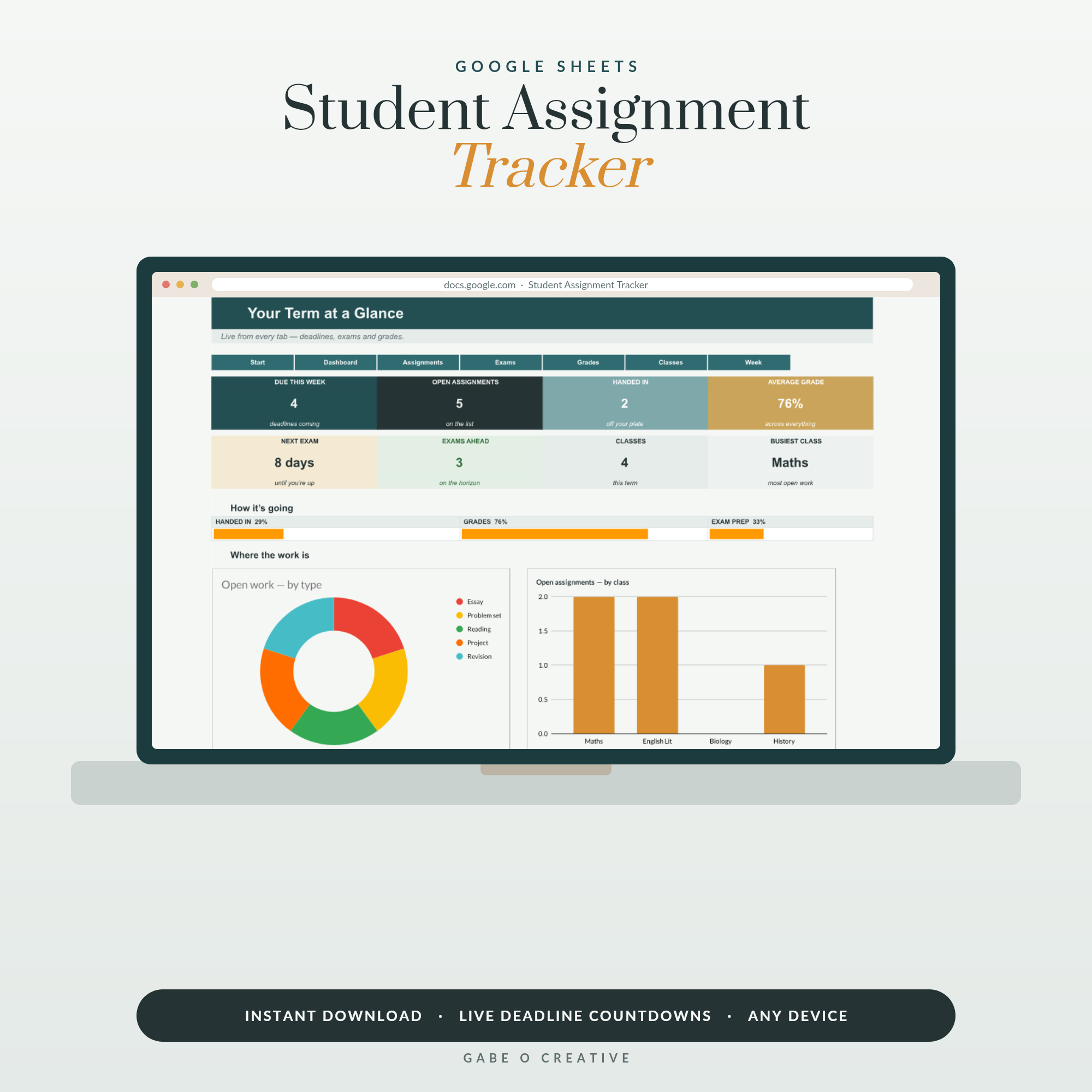 Shop Student Assignment Tracker Google Sheets, Homework Planner Spreadsheet with Deadline Countdown, Exam & Grade Tracker, Academic Organizer →
The Sunday-evening ritual (20 minutes, not 3 hours)
The system pays for itself in one ritual. Sunday evening, tea in hand: glance at the timetable, fill one row per Monday–Tuesday lesson (the rest of the week gets rough one-liners, refined day by day), check what marking is due back, and pick the week's three biggest to-dos. Twenty minutes, sofa-based — because the planner is on your home laptop, not locked in a classroom drawer. Compare that with the Sunday-night document-writing marathon and you understand why teachers who switch don't switch back. Pair it with our classroom organisation ideas for the physical-world half, and the first-day checklist if September is looming.
Two small habits that keep it alive
Digital planners fail the same way paper ones do — by quietly falling out of use in November. Two habits prevent it. First, make the planner the first tab you open at school: pin it in your browser on both machines so it's the default screen, not a thing you go looking for. Second, update in the moment, not at day's end — tick the marking when you hand books back, jot the class note while 8A are packing up. Thirty seconds in context beats fifteen minutes of reconstruction at 5pm, and it's the difference between a planner that reflects your week and one that flatters it. Teachers who keep these two habits report the system still running strong in June — which is exactly when the class-notes tab pays out its dividends into report writing.
Set up once, reuse forever
An evening of setup in late August — classes in, timetable in, first fortnight sketched — runs the whole year. And here's the compounding part: next September you duplicate the file, clear the live columns, and inherit your entire lesson library, class-notes structure and routines. Year two takes an hour. If you prefer paper in your hands during lessons, our printable teacher planner makes a lovely desk companion to the digital brain — and if you're teaching your own children at the kitchen table, the same thinking (multiple learners instead of multiple classes) powers the Homeschool OS, attendance records and all. Track your own marking-free professional development the same way you'd track anything else — the gradebook guide covers the assessment side in more depth.
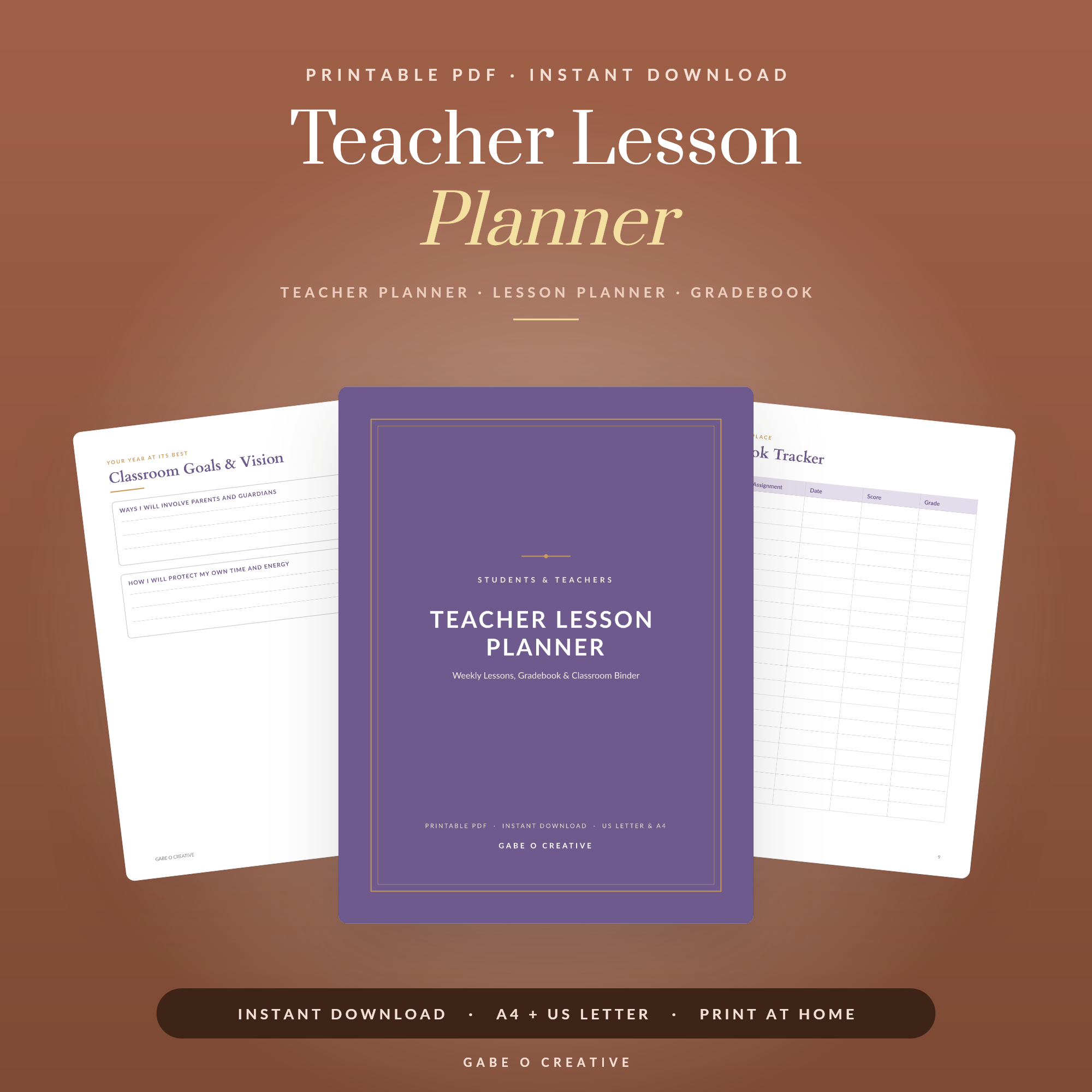 Shop Teacher Lesson Planner →
How to make a teacher planner in Google Sheets yourself
If you would rather build it than buy it, the whole thing is achievable in an evening — and knowing how it works makes any template easier to adapt. Here is the build, tab by tab.
1. Start with the class list, not the timetable
Open a blank spreadsheet and make the first tab Classes: one row per pupil, with columns for name, class, and anything you refer to weekly (reading age, additional needs, guardian contact). Every other tab pulls from here, so type each name exactly once. Name the range — select the column, then Data > Named ranges — and you can reference it everywhere as Pupils instead of hunting cell addresses.
2. Build the week as a grid, not a list
The Week tab wants periods down the side and days across the top, matching how you actually read a timetable. Merge nothing — merged cells break sorting and filtering later, and you will want both. Freeze the header row and the first column (View > Freeze) so the grid stays readable when you scroll into Friday.
3. Make the gradebook do the arithmetic
On a Marks tab, put pupils down the side and assessments across the top. Then three formulas do most of the work:
=AVERAGE(B2:H2)for each pupil's running average.=AVERAGE(B2:B40)at the foot of each assessment column, which tells you whether a low score is the pupil or the question.=COUNTBLANK(B2:B40)to surface missing work without reading down the column.
Add conditional formatting on the pupil averages — Format > Conditional formatting, colour scale — and the class reads at a glance instead of demanding you interpret forty numbers.
4. Add the two tabs everyone forgets
A Notes tab (date, pupil, what happened, what you did) is the one that saves you at parents' evening and in any safeguarding conversation, because it is contemporaneous. And a Lessons tab — topic, resources link, what to change next time — becomes your library by half term, which is the part that makes year two so much faster.
What is genuinely fiddly
Two things take longer than expected: making it usable on a phone (keep tabs narrow — anything wider than about six columns is miserable to scroll), and protecting formula cells so you do not overwrite an average mid-lesson (Data > Protect sheets and ranges). Neither is difficult; both are tedious, and they are the reason most people eventually reach for a ready-made file. If you would rather skip the build entirely, our Teacher Planner for Google Sheets has all of the above already wired up, and you can still take it apart to suit your own timetable. If you just want to try the format first, there is a free weekly planner at gabeocreative.com/free to see whether planning this way suits you at all.
Frequently asked questions
How do I make a teacher planner in Google Sheets from scratch?
Start with a Classes tab holding every pupil once, then a Week grid with periods down and days across, then a Marks tab using AVERAGE and COUNTBLANK with conditional formatting. Add Notes and Lessons tabs last — they are the two that make the following year quick.
Why use Google Sheets instead of a paper teacher planner?
Because the paper planner is always in the wrong building. A Sheets planner is on your school laptop, home laptop and phone simultaneously — plan Sunday evening on the sofa, teach from it Monday morning, update it at the photocopier. Nothing to lose, nothing to carry, and reusable next year.
What should a teacher planner track?
Five things cover the job: the weekly timetable, lesson plans per class (objective, activity, resources), the marking pile with due-backs, a to-do list split by urgency, and per-class notes — seating quirks, who needs stretching, what to remember for parents' evening.
How do I plan lessons faster?
Plan in rows, not documents. One line per lesson — objective, main activity, resources, homework — beats a full page you'll never re-read. The detail lives in your slides and worksheets; the planner is the map, not the territory. Most teachers halve planning admin this way.
How do I stop the marking pile taking over?
Track it like a debt: what came in, when it's due back, and the promise you made. A marking log with dates turns a guilt-cloud into a short list — and 'mark 8 books a day' beats 'mark everything Sunday' for both quality and sanity.
Can I reuse the planner every year?
Yes — that's a quiet superpower of the spreadsheet version. September: duplicate last year's file, clear the live data, keep the structure and your accumulated lesson library. Year two of digital planning takes half the setup of year one.
Is this useful for homeschooling parents too?
The thinking transfers completely, though homeschoolers juggle multiple children rather than multiple classes — attendance records, per-child progress and curriculum budgets. That's exactly what our Homeschool OS spreadsheet is built around.
Save your Sundays before September does its September thing: make your copy of the Teacher Planner in Google Sheets and set the whole year up in one calm evening.